
The May 2026 Canvas outage made a Canvas or Blackboard note-taking backup feel less like a paranoid idea and more like a finals-week survival skill. Reports tied the disruption to a ShinyHunters-related Canvas data breach affecting Instructure customers across a platform described as serving 9,000 institutions and 275 million users, with timing that landed during the end-of-semester crunch for many students.[1][2]
The breach story matters, but the student problem is smaller and more immediate: if Canvas or Blackboard stopped loading tonight, what would still be on your own laptop? Readings? Lecture pages? Assignment instructions? Feedback? The uncomfortable answer is that most students have less than they think, because being able to view course content inside an LMS is not the same as owning a usable backup.

Salon’s post-outage coverage framed the same failure from the institutional side: many colleges had no practical backup plan ready when Canvas became unavailable.[3] That does not mean every school was careless, and it does not mean students can solve institutional continuity by themselves. It does mean a personal note-taking backup needs to be judged by one plain test: can you open the material when the LMS is down?
The Hard Part: Canvas Does Not Give Students a Course Export Button
Canvas is the disappointing case because the clean path students expect is not there. In an Instructure Community discussion asking how a student can back up or download a course they do not own, the answer is that students do not have a native course backup or course download feature.[4] That single limitation shapes every realistic Canvas-to-Obsidian, Canvas-to-Notion, or Canvas-to-Evernote plan.
There are two official paths people usually mention, and both come with sharp edges. First, Canvas may offer an ePub download for course content if the institution has enabled it. That can help with pages and readable course material. It is not a full course archive. It does not turn quizzes, discussion participation, submissions, grades, external tool content, or every embedded file into a tidy note-app library.
Second, instructors can export a Canvas course. Instructure’s own documentation describes course exports as IMSCC files and places the export workflow in the instructor/admin side of Canvas, not in the normal student toolkit.[5] The documentation also defines the export as a Common Cartridge package. That matters because Obsidian, Notion, and Evernote are not Canvas course import targets. I have not independently opened a real Canvas IMSCC export inside those personal apps, so the safest way to say it is narrower: based on Instructure’s documented format boundary, IMSCC is not a student-friendly personal note-app export.
The result is awkward but important. A student can ask an instructor for a course export or for shared files, and sometimes that works beautifully. But asking is not a button. It depends on the instructor, the department’s policy, copyright concerns, and how much time anyone has at the end of term.
| Path | What a student can realistically get | Best use | Main failure |
|---|---|---|---|
| Canvas ePub, if enabled | Readable page-style course content | Saving lecture pages and text-heavy modules | Not a full course archive; misses LMS-native activity records |
| Instructor Canvas export request | Possibly an IMSCC course package or shared source files | Recovering instructor-owned materials when the instructor agrees | IMSCC is built for compatible LMS import, not personal note apps |
| Manual copy-paste from Canvas | Pages, instructions, selected text, visible links, some images | Building a usable Obsidian, Notion, or Evernote study archive | Formatting, embedded media, and links need checking |
| Instructor-shared Drive or OneDrive folder | Original PDFs, slides, documents, and handouts | Keeping source files outside the LMS | Only works if the instructor shares them |
| Third-party Canvas-to-Notion helpers | Often assignment metadata such as names and due dates | Planning deadlines | Does not migrate lecture notes or full course content |
| Blackboard export/archive ZIP | Extractable course files, often including HTML | Pulling course materials into folders before cleanup | Still not a clean import into a note app |
Canvas Backup Paths, Ranked by Recoverability
Convenience is the wrong ranking system here. A browser extension that looks polished but captures only assignments is less useful than a boring folder of copied lecture pages if the exam is tomorrow. The better question is what you can verify after the transfer.
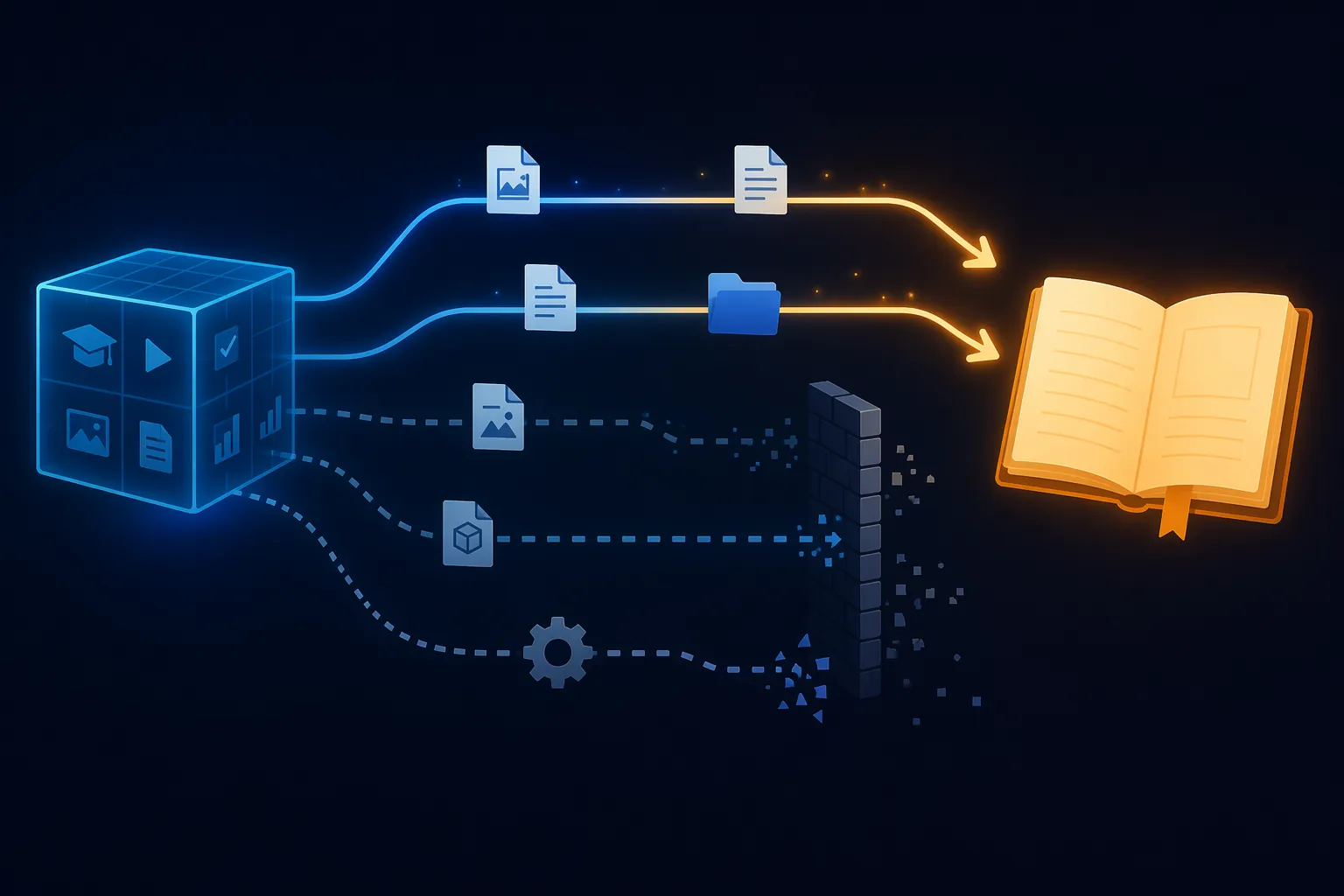
Most reliable: manual copy-paste into your own notes
Manual copy-paste is ugly, slow, and still the path I would trust first for Canvas. Open the module, page, assignment, or announcement while Canvas access still works. Copy the material you actually study from. Paste it into a note app or a Markdown editor. Save attached PDFs and slides into a local course folder. Then link those files from the note.
For Obsidian, that usually means one folder per course, one note per lecture or module, and local copies of PDFs and images stored beside the note. For Notion, it may mean one course database with pages for modules, assignments, and readings. For Evernote, notebooks and tags are usually enough. The destination app matters less than the verification step: pretend Canvas is unavailable and ask whether the note still makes sense on its own.
- Copy the page title, date, module name, and instructor context before the body text.
- Download PDFs, slides, handouts, and images instead of relying on LMS links.
- Paste assignment instructions separately from lecture notes so deadlines do not disappear inside study material.
- Add a short source line such as “Copied from Canvas module 6” so you can trace the note later.
- Open the note after saving and check whether images, tables, math, and links survived.
Useful when available: Canvas ePub
If your school has enabled Canvas ePub exports, use it. It can give you a readable course-content file that is much better than nothing. The catch is that students do not control whether the option exists, and the ePub is not a complete academic record. Treat it as a reading backup, not as a Canvas backup.
The ePub path is most helpful for text-heavy classes where the instructor builds content directly in Canvas pages. It is much less comforting for courses that live in quizzes, discussion boards, external lab tools, embedded videos, or downloadable files scattered across modules.
Worth asking for: instructor-shared files
The most humane version of this process is not a file format trick. It is an instructor sharing the original materials in Google Drive, OneDrive, Dropbox, or a department site: lecture slides, PDFs, handouts, problem sets, project briefs. Those files are often cleaner than anything scraped from Canvas because they are the source documents, not LMS-rendered copies.
Ask early and specifically. “Can you share the PDF readings and lecture slides for offline study?” is more likely to work than “Can you export the course?” If the instructor says no or does not answer, you still need your own manual backup plan. That is the contradiction students get stuck with: instructor help can be the best route, but it is also the least guaranteed.
Usually overrated: Canvas IMSCC export
If an instructor offers an IMSCC export, take it if you are allowed to have it, but do not assume it will drop into Notion or Obsidian. Instructure documents Canvas course exports as Common Cartridge packages intended for compatible course systems.[5] That makes sense for moving a course between LMS environments. It is not the same job as turning a semester into personal notes.
For ordinary student recovery, an IMSCC file can become a frustrating souvenir: proof that content exists, but not a clean set of Markdown notes, Notion pages, or Evernote notes. If you receive one, also ask for the original files or permission to download the course documents separately.
What Will Not Transfer Cleanly
The most dangerous backup is the one that looks finished because the folder has a lot of files in it. Canvas and Blackboard courses are not just documents. They are also permissions, due-date rules, embedded tools, gradebook states, discussion threads, quiz engines, comments, rubrics, attempts, and external integrations. Personal note apps are not designed to preserve all of that.
| Material | Manual backup expectation | What to do instead |
|---|---|---|
| Lecture pages | Usually copyable, but formatting may change | Paste, then check headings, tables, equations, and images |
| PDFs and slides | Often downloadable if visible to students | Save the original file locally and link it from your note |
| Assignments | Instructions can usually be copied; submission state may not transfer | Copy prompt, rubric, due date, and file requirements separately |
| Quizzes | Usually not exportable as a meaningful student-owned record | Save allowed review notes only; respect course rules |
| Discussions | Threads may be hard to preserve and may include classmates’ work | Copy your own notes or instructor summaries when allowed |
| Grades and feedback | Gradebook data is not a normal note-app migration target | Download feedback files or screenshots only if permitted and needed |
| Embedded LTI content | Often stays behind the LMS login | Look for separate downloadable files or external account exports |
| Images and media | May paste as broken references | Download files directly where possible and reinsert them |
Quizzes deserve extra caution. A student may be able to see a past attempt, a score, or limited feedback, depending on course settings. That does not mean the quiz is yours to export, republish, or preserve in full. Some instructors intentionally restrict question visibility. Some departments treat assessments as controlled materials. A backup routine should protect your ability to study, not turn you into the accidental distributor of exam content.
Discussion boards have a different problem. They contain other students’ words. Even when the thread is visible to you, copying an entire discussion into a personal app can create privacy and consent issues. If the discussion helped you study, preserve your own synthesis: the instructor’s prompt, your own post, your own takeaways, and any instructor clarification that is clearly meant as course guidance.
Embedded tools are where tidy migration advice collapses fastest. Lab platforms, publisher homework systems, video players, plagiarism tools, annotation tools, and proctoring environments can appear inside Canvas while actually living somewhere else. Copying the Canvas page may capture the sentence around the tool and miss the thing you needed.
A Practical Canvas-to-Notes Backup Routine
Do this before finals week, before the course closes, and before you are depending on one login screen at midnight. The routine is not elegant, but it produces something you can inspect.
- Make a list of what matters: readings, lecture pages, slides, assignment prompts, rubrics, project instructions, feedback, and instructor announcements.
- Download original files first: PDFs, PowerPoints, Word docs, spreadsheets, datasets, and media files.
- Copy Canvas pages and assignment instructions into your note app or a Markdown editor.
- Capture deadline metadata separately if you rely on Notion databases, calendars, or task managers.
- Ask the instructor for a shared folder or source files for anything locked behind modules.
- Verify the backup by opening notes and files outside Canvas and checking for broken images, missing attachments, dead links, and incomplete instructions.
The first pass should be ruthless. Do not start by archiving every breadcrumb in the course. Start with the material you would panic about losing: the exam review page, the final project instructions, the lecture slides your professor keeps updating, the rubric, the reading list, the paper prompt, the feedback you need for revision.
After that, decide how much structure your note app deserves. In Obsidian, Markdown files are the safest portable unit, so paste clean text and keep attachments in a local folder. In Notion, a course database can be useful, but do not confuse database neatness with backup completeness. In Evernote, clipped or pasted pages can work, but open several notes afterward and check whether images and tables survived.
If you already use a migration workflow between note apps, reuse that discipline here: count the files, sample the notes, open attachments, and compare the backup against the live source while you still can. The mistake is waiting until Canvas access expires and then discovering that the “backup” is a pile of clipped fragments with no context.
Blackboard Is More Extractable, Not Magically Portable
Blackboard gives students and instructors a slightly different problem. Anthology’s Blackboard Help documentation describes export and archive packages as ZIP files, with course content stored in a package that can be downloaded and retained depending on role and system permissions.[6] Compared with Canvas’s student-side dead end, a ZIP full of course files feels refreshingly physical.
But a Blackboard ZIP is still not a polished Notion import or an Obsidian vault. You may get HTML files, folders, and assets that can be opened, extracted, renamed, and cleaned up. You may also get a structure that makes sense to Blackboard and very little sense to a tired human being trying to study.
- Extract the ZIP into a local course folder before trying to import anything.
- Open several HTML files in a browser and identify which ones are actual course materials.
- Move useful PDFs, slides, and documents into clearly named folders.
- Copy only the useful HTML text into your note app instead of importing the entire package blindly.
- Check whether images and linked files still open after you move the folder.
So Blackboard gets partial credit. It can be more extractable than Canvas for course files, especially when a ZIP is available. It still leaves you with cleanup, verification, and the same limits around assessments, discussions, grades, and externally hosted tools.
Third-Party Canvas-to-Notion Tools Are Mostly Deadline Tools
Third-party helpers belong after the official and manual paths, not before them. The useful ones can reduce typing. They should not be sold to yourself as a course backup.
For example, Edutools describes a Canvas assignments-to-Notion database extension focused on assignment metadata such as assignment names and due dates.[7] That is helpful if your real problem is planning. It is not the same as exporting lecture pages, readings, discussion content, files, quiz feedback, submissions, or grades.
Guides for connecting Canvas to Notion can also be useful for students who want a dashboard for deadlines and coursework.[8] The scope is the key. A Notion dashboard can tell you what is due. It may not contain the PDF you need to read, the updated project instructions, or the instructor’s clarification buried in an announcement.
If you use one of these tools, verify it like a narrow utility. Did it capture the assignment title? Did the due date match Canvas? Did it create the right course label? Good. Then keep going with the boring backup work, because metadata is not material.
Institutions Are Thinking About Continuity, but That Does Not Save Your Notes Tonight
The outage did push institutions to talk more directly about continuity. Instructure Community discussions after the disruption included “When the LMS Goes Dark,” which treated LMS downtime as something campuses need to plan around rather than dismiss as an inconvenience.[9] Teaching-continuity materials from UIC, CU Denver, and UW-Eau Claire also show that schools can recommend backup practices for instructors and course delivery.[10][11][12]
That is good, and it matters. A prepared instructor can keep a class moving with alternate communication channels, shared files, backup copies of course materials, and expectations set before a crisis. But institutional continuity is not the same as a student-owned archive. A campus plan may help the next outage go better; it does not automatically put last week’s lecture notes into your Obsidian vault.
The Backup I Would Actually Trust
For Canvas, the most trustworthy student backup is a recurring manual or instructor-assisted copy of the materials that matter most. Once a week during the term, and once again before finals, download visible files, copy critical pages and assignment instructions, save feedback you are allowed to keep, and ask for source documents when Canvas is only acting as the display case.
For Blackboard, take advantage of ZIP exports or downloadable course files when you have access, but still treat extraction as the beginning of migration, not the end. Open the files. Rename what matters. Move study material into the note app you already use. Leave behind the machine structure that only made sense inside the LMS.
A student cannot fully export a Canvas course into Obsidian, Notion, or Evernote without help and without losses. The honest backup is smaller: preserve the readings, lecture pages, files, prompts, rubrics, and feedback you need to study and work. Accept that quizzes, gradebook records, discussion systems, submissions, and embedded tools may stay behind. That is not a perfect archive, but it is the difference between an outage being annoying and an outage taking your semester’s working memory with it.
References
- 2026 Canvas data breach, Wikipedia
- Canvas data breach rattles colleges during finals period, NPR
- When Canvas crashed, colleges had no backup plan, Salon.com
- STUDENT QUESTION: How do I backup/download a course as a student who does not own the course?, Instructure Community
- How do I export a Canvas course?, Instructure Community
- Export and Archive Courses, Anthology Help Center
- Canvas assignments to Notion Database, Edutools
- How to Connect Canvas to Notion, Nora Template
- When the LMS Goes Dark, Instructure Community
- Teaching Continuity Plan, University of Illinois Chicago
- Teaching Continuity Plan, University of Colorado Denver
- Develop a Backup Plan for Canvas Courses, University of Wisconsin-Eau Claire
Comments
Join the discussion with an anonymous comment.