
Why Your Current Filing System Is Working Against You
Most people learned to organize information by subject. School trained us to sort things into categories: History, Biology, English Literature. The mental model stuck. So when we build a digital filing system, we instinctively reach for the same logic — a folder called "Marketing," another called "Finance," another called "Personal Development" — and then subdivide endlessly from there.
The problem is that professional life does not work like school. There are no classes, no exams, and no grades. What you have instead are outcomes you are trying to achieve: a product launch, a client proposal, a quarterly review, a side project you keep meaning to start. When you are racing to find the article you saved six months ago, you do not have time to rummage through a vast folder called "Psychology" hoping it surfaces. You need to know exactly where to look — and subject-based filing cannot give you that.
The deeper failure is that subject-based organization makes every filing decision ambiguous. A note about negotiation tactics could live under "Communication," "Management," "Career," or "Books." Every time you save something, you face a micro-decision with no clear answer. Every time you retrieve something, you face the same ambiguity in reverse. Over time the system becomes a place to lose things, not find them.
What Is PARA and Where Did It Come From?
PARA is a four-category organizational system created by productivity writer and educator Tiago Forte. He introduced it in a 2017 Forte Labs blog post and later expanded the concept in his books Building a Second Brain (Atria Books, 2022) and The PARA Method (Atria Books, 2023). The system has since become one of the most widely adopted frameworks in the personal knowledge management space.
PARA stands for Projects, Areas, Resources, and Archives. The core idea is straightforward: instead of sorting information by what it is about, you sort it by how actionable it is right now. That single shift changes how fast you can file something, how reliably you can find it later, and how clearly your organizational structure reflects your actual priorities.
Critically, PARA is tool-agnostic. It is designed to be applied simultaneously across every platform you use — your notes app, your file system, your task manager, your cloud storage. The same four categories, the same project names, everywhere. That consistency is what makes it useful under pressure.
The Four Categories: What Goes Where
Each PARA category represents a different relationship between information and your current commitments. Understanding what distinguishes them — not just what they are called — is what makes the system work.
| Category | Definition | Has a deadline? | Real-life examples |
|---|---|---|---|
| Projects | Short-term efforts with a clear goal and a defined endpoint | Yes | Launch new website, write Q3 report, plan anniversary trip, complete online course |
| Areas | Ongoing responsibilities with a standard to maintain, but no finish line | No | Health, Finances, Direct Reports, Marketing, Home maintenance |
| Resources | Topics of interest or potential future use, not tied to current responsibilities | No | Graphic design references, productivity methods, cooking recipes, investment concepts |
| Archives | Inactive items from the other three categories, kept for future reference | N/A | Completed projects, dropped areas, outdated resources, past employer records |
A few points worth emphasizing. Resources holds things you find interesting but are not currently responsible for — topics you might use someday, not things you are working on now. The distinction between Resources and Areas is responsibility: if you are accountable for it, it is an Area; if you just find it interesting, it is a Resource.
Archives deserves a specific reframe. It is not a graveyard where information goes to die. It is cold storage — everything in Archives remains fully searchable and can return to active status when circumstances change. A completed project that becomes relevant again moves back into Projects. A dropped area you pick back up moves back into Areas. Nothing in Archives is gone; it is simply out of your active view.
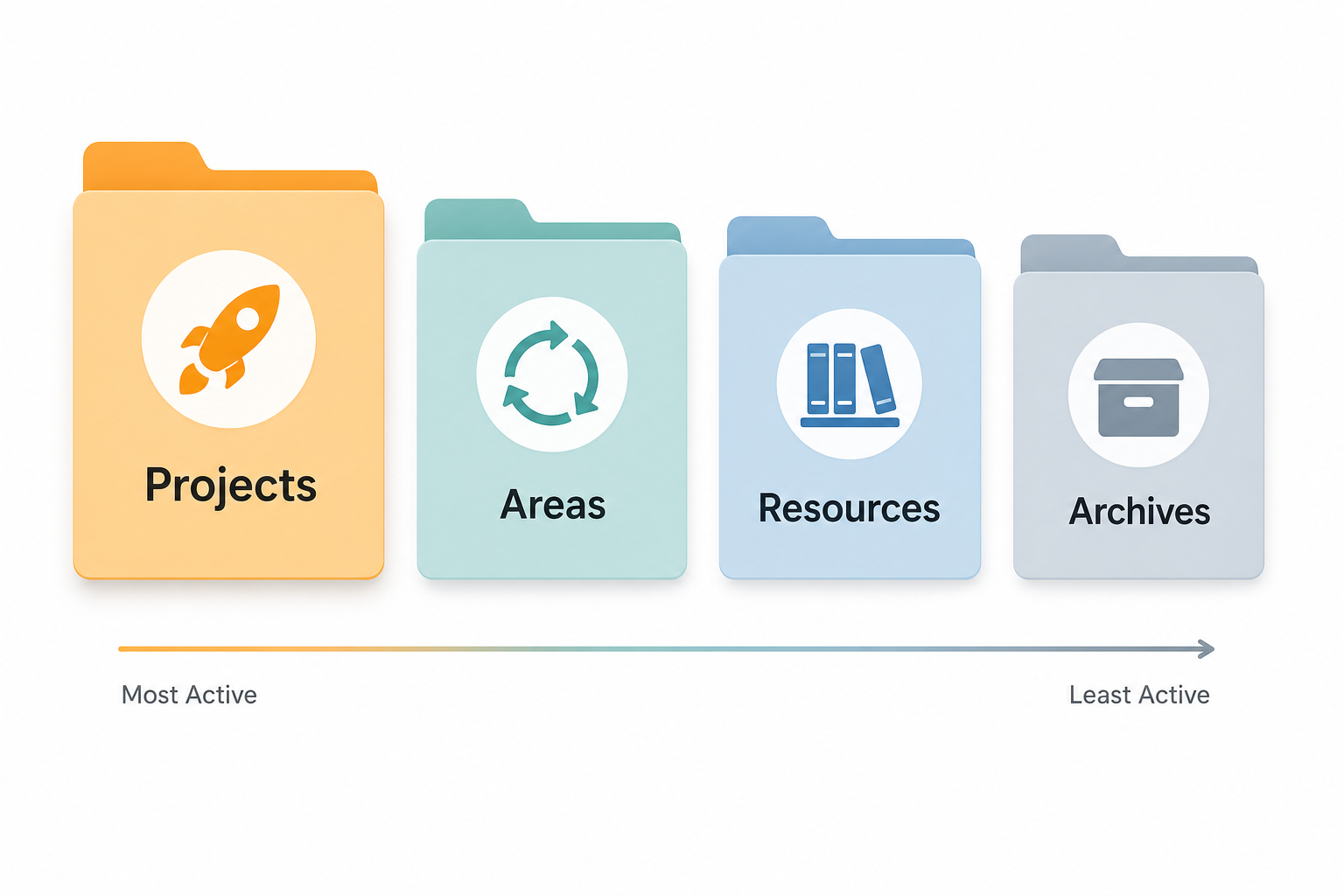
The Core Principle: Organize by Actionability, Not by Subject
The four categories are not arbitrary buckets. They form a gradient from most active to least active — and that gradient is the entire point of the system.
When you need to find something under pressure, you do not have time to think about what a piece of information is about. You need to think about what you are trying to accomplish right now. PARA routes you there instantly. Working on a project? Check the Projects folder. Maintaining an ongoing responsibility? Check Areas. Looking for reference material? Check Resources. Everything else is in Archives, searchable but out of the way.
Forte's original framing makes the contrast explicit: rather than organizing information according to broad subjects the way school taught us, PARA asks you to organize it according to the projects and goals you are committed to right now. This is what it means to organize by actionability.
In practice, this means filing a new piece of information is a two-question process:
- Is this related to a current project? If yes, it goes in that project's folder.
- If not, is it related to an ongoing area of responsibility? If yes, it goes in that area's folder.
- If neither, it goes in Resources (or Archives if it is already inactive).
The Distinction That Makes or Breaks PARA: Projects vs. Areas
The most common reason PARA stalls is a blurred line between Projects and Areas. Getting this distinction right is the single highest-leverage skill in the entire system.
The test is simple: does it have a finish line and a deadline? A project has a clear definition of done and a date by which it needs to be done. An area has neither — it is an ongoing standard you are responsible for maintaining indefinitely.
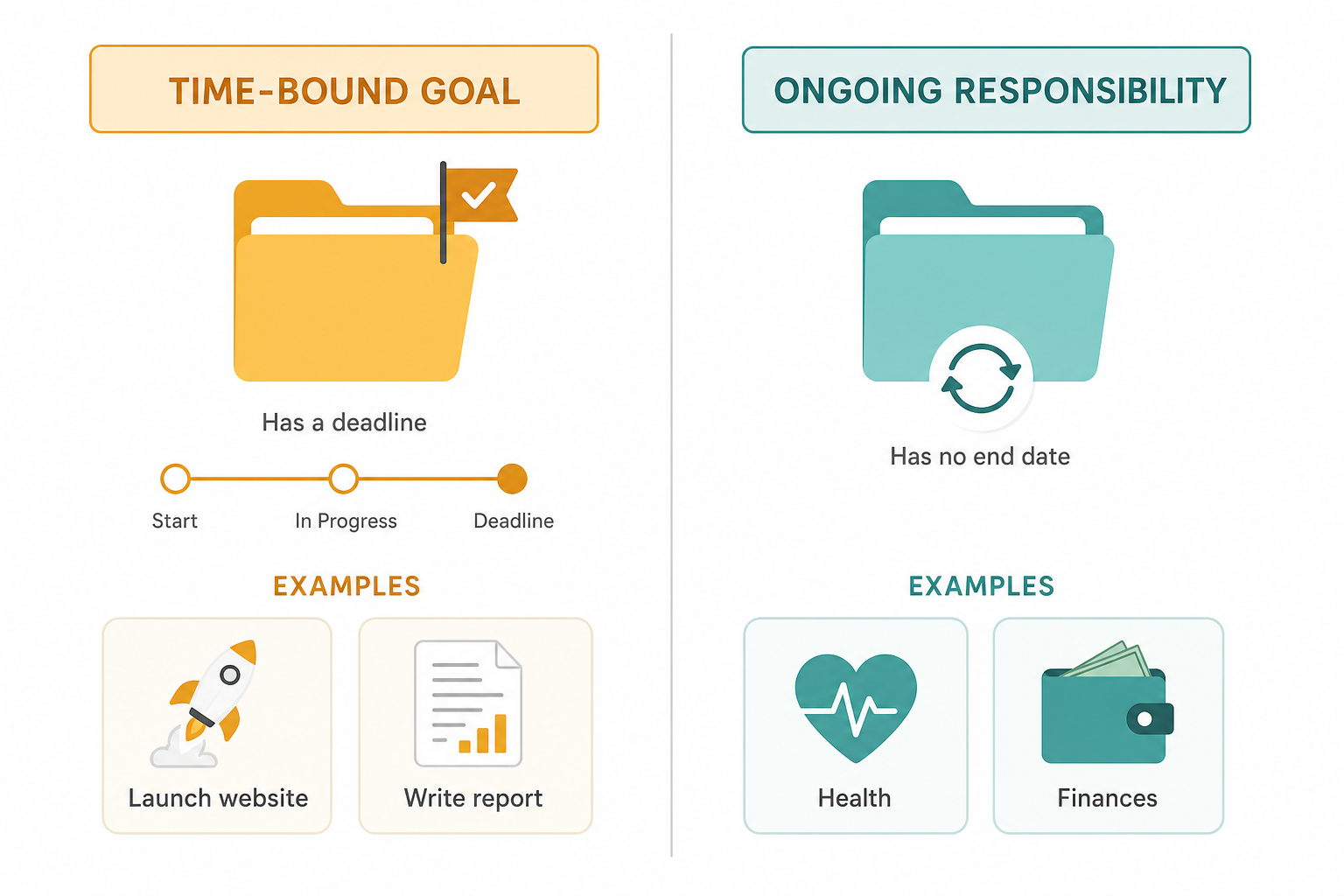
| This is a Project | This is an Area |
|---|---|
| Write Q1 board presentation | Board relationships |
| Complete annual performance reviews | Direct reports |
| Launch redesigned homepage | Marketing |
| Run the London Marathon in April | Health |
| Refinance the mortgage | Finances |
| Plan spring break trip | Family |
When you treat an area as a project — labeling "Hiring" or "Strategic Planning" as a project — you create a projects list that never turns over. Nothing ever gets completed and archived. The list grows longer over time, and every weekly review produces a low-level sense of guilt and stalled momentum rather than a clear picture of what you are actually working on.
Areas dressed as Projects never get finished, and a project that never finishes is not a project. It's a source of chronic low-level guilt.
Forte suggests that most people have somewhere between 10 and 15 active projects at any given time. That range is wide enough to give you options when you are stuck on one thing, and narrow enough that you can see the full list at a glance and review it weekly.
I've found that around 10–15 projects seems to be the right range for most people. That's enough that if you get stuck on one, you have multiple other options to turn to, instead of getting completely bogged down. It's also few enough that you can see them all at a glance, and review and reflect on them on a weekly basis.
If your Projects folder contains more than 20 items, two things are probably happening. Some entries are areas masquerading as projects. Others are what Forte calls false projects — aspirations or dreams with no real deadline attached. A third category is megaprojects: efforts so large they need to be broken into smaller, genuinely completable sub-projects before they belong in the Projects folder.
How to Implement PARA: Start Small, Expand as Needed
The fastest way to fail at PARA is to spend a weekend building an elaborate folder structure before you have any content to put in it. The fastest way to succeed is to start with the smallest possible version and let the structure grow from real use.
The minimum viable entry point is a single folder: Projects. Create it in your primary tool today. Add a subfolder for each active project you can name right now. That is a working PARA system. Everything else can wait.
When you are ready to expand, the recommended clean-slate method works as follows:
- Create an Archives folder and move everything currently in your system into it. Your slate is now clean. Nothing is deleted; everything is still searchable.
- Create a Projects folder and add a subfolder for each active project you are currently working on.
- Build Areas and Resources folders only when you have real content that belongs there — not as empty placeholders waiting to be filled.
- As you work, pull items out of Archives when they become relevant again and place them in the appropriate active category.
Keep implementation guidance conceptual at first. Whether you use Notion, Obsidian, Google Drive, Apple Notes, or a plain file system, the four folders work the same way. The tool does not change the structure.
Keeping PARA Consistent Across All Your Tools
PARA's real power emerges when you apply the same four categories and the same project names across every platform simultaneously. Your notes app, your file system, your task manager, and your cloud storage all use identical top-level folders. When you are looking for anything related to a specific project, you always know exactly which folder to open — regardless of which tool you are in.
This cross-tool consistency is not optional. If your notes app uses PARA but your file system uses subject-based folders, you have split your retrieval logic and negated the main benefit of the system. You will still have to think about where something might be.
- Notes app (Notion, Obsidian, Apple Notes, Evernote): four top-level notebooks or folders named Projects, Areas, Resources, Archives.
- File system (Finder, Windows Explorer, Google Drive): four top-level folders with the same names and the same project subfolder names.
- Task manager (Things, Todoist, TickTick): projects organized to mirror the PARA Projects folder — same project names, same active list.
If you already use a task management system built around Getting Things Done, your GTD project list and your PARA Projects folder should be mirrors of each other. When a project closes in your task manager, the corresponding PARA folder moves to Archives. The two systems divide responsibilities cleanly: GTD handles what to do next; PARA handles where to find everything you need to do it.
Common Mistakes and How to Avoid Them
Most PARA implementations do not fail because the system is wrong. They fail because of a small number of predictable mistakes. Recognizing the symptoms early is easier than rebuilding the system after it has collapsed.
- Too many projects. Symptom: your Projects folder has 25 entries and you feel vaguely overwhelmed every time you open it. Fix: audit each entry against the deadline-and-finish-line test. Move areas to Areas, aspirations to Resources, and oversized efforts to a planning note until they are broken into real sub-projects.
- Treating areas as projects. Symptom: your projects list never shrinks because nothing ever gets completed and archived. Fix: rename the entry as an area and create a specific project within it that has a real deadline.
- Projects and Resources collapsing into each other. Symptom: everything interesting goes into Resources, so the Projects folder stays artificially clean while your actual work lives in a growing Resources pile. Fix: apply the two-question test at filing time. If it is directly needed for active work, it belongs in the project folder.
- Never archiving. Symptom: completed projects stay in the Projects folder indefinitely, making it hard to see what is actually active. Fix: archive a project the moment it is completed or formally paused. This is a one-second action, not a ceremony.
- Trying to implement everywhere at once. Symptom: you spend a weekend reorganizing six tools and burn out before any of them are useful. Fix: start with one tool — your primary notes app or file system — and extend to others once the first is stable.
- Over-organizing Resources. Symptom: your Resources folder has 50 sub-categories and filing a new item requires choosing between them. Fix: keep Resources shallow. A flat structure with broad topics is easier to search than a deep hierarchy that requires perfect categorization at the moment of saving.
The Weekly Review: The One Habit That Keeps PARA Working
A well-designed organizational system can still decay into labeled clutter if it is never maintained. For PARA, the maintenance mechanism is a weekly review focused primarily on the Projects folder.
The review does not need to be elaborate. Fifteen minutes each week is enough to keep the system accurate. The goal is to confirm that your Projects folder reflects your actual active commitments — not the commitments you had three months ago, and not the aspirations you have not yet made real.
- Archive any project that has been completed or formally paused.
- Check whether any Resources items have become relevant to an active project and should be moved.
- Confirm the project list matches what you are actually working on this week.
- Add any new projects that have started since the last review.
My weekly review is mostly focused on my projects, since they are actionable and moving forward on a weekly basis. On a longer timeframe, such as once a month or every couple of months, I also do a monthly or quarterly review to evaluate my work and life from a more elevated perspective.
The weekly review is to PARA what the weekly review is to GTD: the mechanism that prevents a trusted system from becoming a stale archive of old intentions. Without it, the Projects folder gradually stops reflecting reality, and the system loses its core value — knowing exactly where to look.
Who PARA Works Best For — and Where It Falls Short
PARA is not a universal solution. Being clear about where it excels and where it struggles will save you from investing in the wrong system — or from abandoning a system that would have worked with a small adjustment.
| PARA works well for | PARA is less suited for |
|---|---|
| Project-driven knowledge workers with multiple concurrent commitments | Researchers and academics who need ideas to compound and connect over time |
| People overwhelmed by digital clutter across multiple tools | Writers building a body of interconnected ideas (Zettelkasten is better suited) |
| Those who have tried and abandoned more complex PKM systems | Teams needing a shared organizational standard (PARA is primarily a personal system) |
| GTD users looking for a complementary information-management layer | People whose work is entirely reactive with no defined projects |
For research-heavy users and academics, the core limitation is that PARA organizes information for action — it does not help ideas compound and connect over time the way a Zettelkasten does. The two systems are not mutually exclusive, however. Zettelkasten principles can be applied inside the Resources folder without disrupting the broader PARA structure. PARA provides the organizational container; Zettelkasten provides the linking logic within it.
The relationship between PARA and Getting Things Done is explicitly complementary, not competitive. GTD answers the question of what to do next and how to track every open commitment. PARA answers the question of where to find everything you need to do it. The two systems are designed to be used together: your GTD project list and your PARA Projects folder should mirror each other, and when a project closes in GTD, the corresponding PARA folder moves to Archives.
PARA as Starting Infrastructure, Not a Final Destination
The most important thing to understand about PARA is that it is designed to be fluid. The contents of your four folders are constantly moving as your priorities shift. A Resource becomes a Project when you commit to acting on it. A completed Project moves to Archives. An Area you drop moves to Archives. A long-archived project becomes active again and moves back to Projects.
This fluidity is a feature, not a flaw. PARA is not asking you to perfectly categorize your entire digital life on day one. It is giving you a structure that can absorb change without breaking down — because the categories are defined by your current relationship to information, and that relationship is always shifting.
Start imperfectly. Four folders, one tool, today. The system does not need to be complete before it starts being useful. A Projects folder with five accurate entries is more valuable than a perfectly planned PARA structure you build over a month and never actually use.
Comments
Join the discussion with an anonymous comment.