
A notification problem stops being a personal productivity problem once the numbers get this large: Microsoft’s 2025 Work Trend Index reported that employees received 153 Teams messages and 117 emails per day, contributing to 275 daily interruptions across chats, emails, meetings, and other signals. [1] That is not a few noisy coworkers. That is the operating system of a workday.
So the useful question is not whether notifications are annoying. Everyone who has tried to write a brief, review a design, close a ticket, or reconcile a project plan while watching red badges multiply already knows that. The useful question is how to reduce notification overload without going dark on the people who actually need an answer.
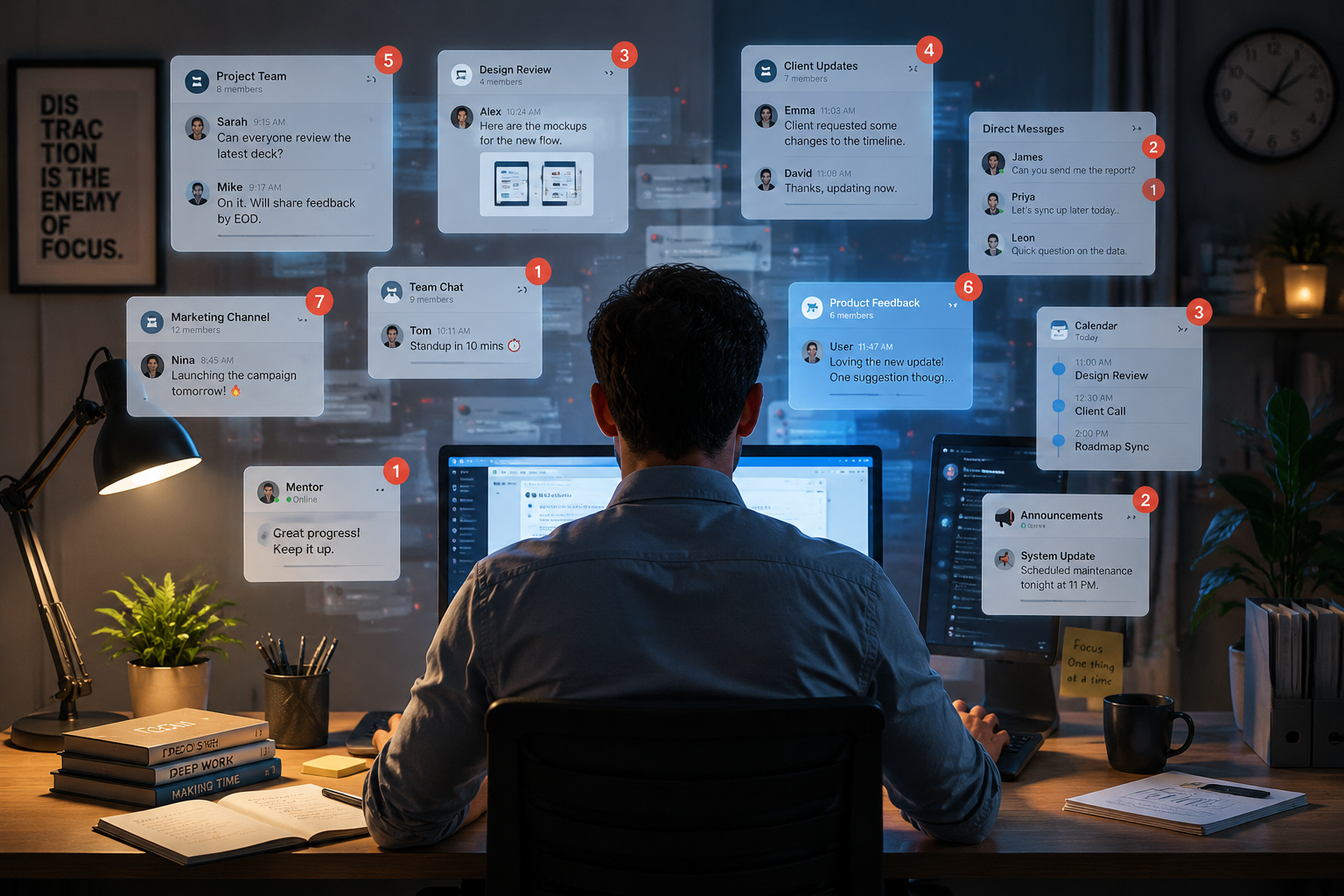
Among Slack, Microsoft Teams, Google Chat, and Zoom Team Chat, Slack gives the strongest notification controls for most teams because it lets people tune alerts at a more granular level: per-channel notification choices, keyword alerts, and thread muting. Microsoft Teams is a credible second, especially in organizations already built around Microsoft 365, because its per-team and per-channel settings, activity-only options, and preview controls are meaningful. Google Chat and Zoom Team Chat can still quiet a day with per-space muting and scheduled Do Not Disturb, but they are less compelling if the central requirement is maximum alert flexibility.
The 60-80% reduction target is realistic only when it describes a combined change in settings and norms. It is not a magic result that comes from installing the right chat app. If a manager uses @everyone as a normal status update tool, or expects replies five minutes after sending a 9:47 p.m. message, the software can only do so much.
The Quick Comparison
| App | Best notification controls | Where it is strongest | Main limitation |
|---|---|---|---|
| Slack | Per-channel settings, mention-only alerts, keyword notifications, thread muting, DND | Teams with many channels, mixed urgency, and workers who need different rules for different streams | Still depends on disciplined channel design and mention behavior |
| Microsoft Teams | Per-team and per-channel settings, activity-only mode, message preview controls, DND | Microsoft 365 organizations that need configurable alerts without leaving the enterprise stack | Controls are useful, but less granular than Slack for highly channelized work |
| Google Chat | Per-space muting, notification settings, DND scheduling | Google Workspace teams that need basic noise reduction across spaces | Less flexible for detailed alert routing |
| Zoom Team Chat | Chat muting, notification settings, DND scheduling | Zoom-heavy teams that want meeting and chat communication in one place | Useful, but not the strongest option for advanced notification control |
That table is enough for a quick tool decision. The harder work starts after the choice, because a notification system is only good if an ordinary worker can tell the difference between “I need this now” and “this can wait” without maintaining a private rulebook.
Slack: The Best Fit When Different Channels Need Different Rules
Slack’s advantage is not that it has notifications. Everyone has notifications. Its advantage is that the controls map fairly well to how work actually splits across a team. A product launch channel, an engineering incident channel, a design critique channel, and a social channel should not all be allowed to interrupt the same way.
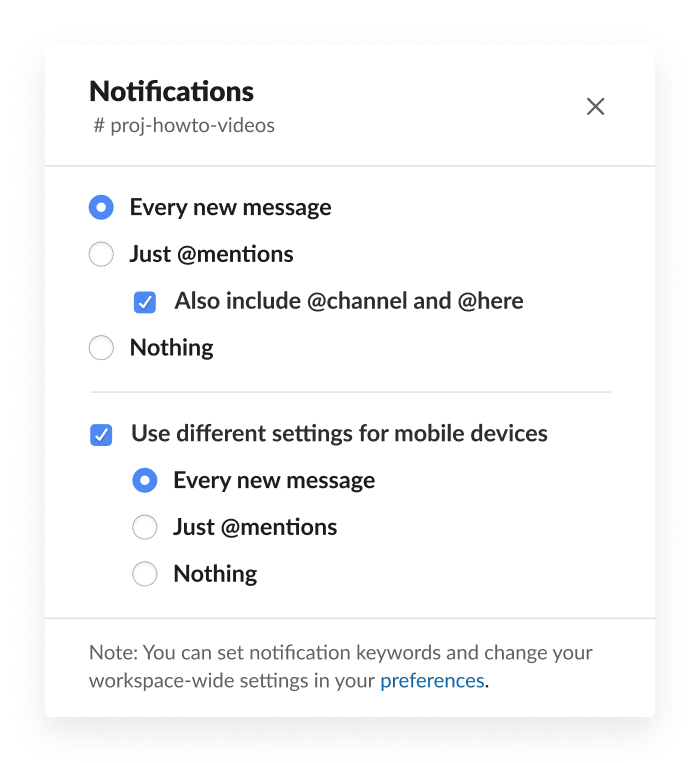
The useful Slack pattern is simple: keep only the channels that can create same-day action on stronger alerts, move most project channels to mentions-only, and mute channels that are useful for reference but not for interruption. The difference matters because channel sprawl usually does not feel dangerous at first. It starts as helpful transparency. Then every project, initiative, customer segment, office, and side conversation gets a room, and the worker is left to sort urgency one ping at a time.
Slack’s keyword alerts are especially valuable for people whose work cuts across channels but does not require them to watch every message. An analyst might need to know when a specific dataset is mentioned. A designer might care when a launch asset is named. An engineer might need alerts for a service name, not every line of project chatter. Keyword alerts are not a substitute for direct mentions, but they are a useful backstop when the team has predictable terms that should surface quickly.
Thread muting is the other control that deserves more respect than it gets. A thread can be important for the first two replies and then become a long negotiation among three people. Muting that thread lets the original reader step away without leaving the whole channel. That is the right level of precision: not “mute the team,” not “endure the noise,” but “stop following this branch.”
- Set urgent operational channels to all messages only when the channel is genuinely used for time-sensitive work.
- Set most project channels to mentions-only so routine updates stay visible without becoming interruptions.
- Use keyword alerts for names of systems, customers, workstreams, or deliverables that should cut through channel noise.
- Mute threads once they stop needing your attention, rather than muting the whole channel too aggressively.
- Schedule Do Not Disturb around focused work blocks and after-hours boundaries.
Slack is the most flexible choice in this comparison, but flexibility brings its own maintenance cost. If nobody archives stale channels, names channels consistently, or explains which channels are interrupt-worthy, the worker still has to inspect the mess manually. Granular controls help most when the team’s channel structure is not already a junk drawer.
Microsoft Teams: Strong Enough for Enterprise Teams That Already Live There
Microsoft Teams deserves a serious second place because many organizations are not choosing a chat tool in isolation. They are choosing inside a Microsoft 365 environment where meetings, files, calendars, identity, compliance, and chat are already connected. In that setting, “good enough notification control” can beat a theoretically cleaner tool that the organization will not actually adopt.
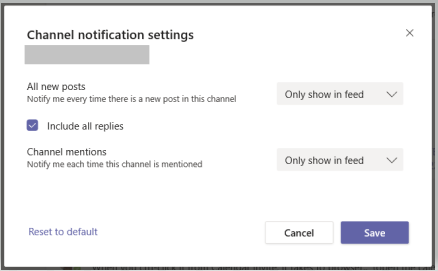
Teams gives users meaningful control at the team and channel level. The practical move is to separate channels that deserve active interruption from channels that should appear mainly in the activity feed. Activity-only behavior is useful because it keeps a trace of work without making every update a desktop event. That distinction is one of the cleanest ways to reduce the feeling that everything is equally urgent.
Message preview controls also matter more than they sound. A preview can pull attention even when the message does not deserve a response. Turning previews off for lower-signal contexts does not remove the notification, but it reduces the temptation to mentally process every fragment while doing something else.
A sensible Teams setup usually starts with three buckets: channels that can notify actively, channels that should show in activity only, and channels that can be muted or checked on a schedule. The mistake is treating the default notification state as a neutral choice. Defaults are not neutral once the organization has hundreds of messages moving through them.
- Use per-channel settings instead of one broad account-wide rule whenever a team contains both urgent and reference-heavy channels.
- Move lower-priority channels to activity-only so they remain findable without producing constant banners.
- Disable message previews where the interruption is usually worse than the value of the glance.
- Reserve stronger alerts for direct mentions, small-group coordination, and channels with clear response expectations.
Teams is not as granular as Slack for workers who want to sculpt every channel and thread. But in a Microsoft-heavy company, it has enough notification control to make a large difference if team leads stop treating every channel as an equal broadcast lane.
Google Chat: Useful Controls, Less Room to Fine-Tune
Google Chat is a cleaner answer for teams already centered on Google Workspace, but it is not the strongest option for highly detailed notification routing. Its most useful controls are per-space muting and Do Not Disturb scheduling. Those are enough to reduce noise when the team has a manageable number of spaces and a clear understanding of what belongs where.
The practical configuration is to mute spaces that function as announcement archives, social rooms, or broad project visibility feeds. Keep notifications for spaces where direct participation is expected. Then use DND for focus blocks and off-hours protection. That will not give the same precision as Slack’s keyword-and-thread combination, but it can prevent the worst version of the day, where every space behaves like a live escalation channel.
Zoom Team Chat: Sensible If Zoom Is Already the Work Hub
Zoom Team Chat is in a similar category: useful enough to reduce noise, not the best fit if notification control is the primary buying criterion. For organizations that already rely heavily on Zoom, keeping chat close to meetings can reduce tool switching. The notification question is whether its muting and DND controls are enough for the team’s complexity.
For smaller or simpler teams, they may be. Mute low-value chats, use scheduled DND, and keep high-signal conversations visible. For teams with many parallel workstreams, rotating incident channels, or people who need keyword-level alerting across projects, Zoom Team Chat is less persuasive than Slack and less naturally embedded than Teams in a Microsoft enterprise.
The Configuration That Actually Reduces Interruptions
A good setup does not begin by muting everything. That only pushes people into direct messages, side channels, and follow-up pings. Start by deciding which conversations have the right to interrupt.
| Workstream type | Recommended alert level | Reason |
|---|---|---|
| Incidents, blockers, live customer issues | All messages or strong alerts | The cost of missing the message is high and time-sensitive |
| Active project execution | Mentions-only or equivalent | Most updates matter eventually, but not all deserve immediate attention |
| Leadership announcements and broad visibility feeds | Activity feed, muted, or scheduled review | The information is useful, but usually not urgent |
| Social, interest, or optional channels | Muted by default | Participation should not compete with focused work |
| Recurring topics tied to your role | Keyword alerts where available | The topic matters even when the whole channel does not |
This is where the 60-80% target becomes plausible. Not because one setting performs a miracle, but because most teams discover that only a small share of messages truly require immediate interruption. The rest need visibility, searchability, ownership, or later review.
The order matters. Configure channels or spaces first. Then reserve high-signal alerts for mentions, keywords, or operational rooms. Then mute low-value threads and rooms. Then schedule DND. If DND is the first and only move, the worker has to choose between protecting focus and becoming unreachable. That is not a system; it is a coping mechanism.
A workable default for most teams
- Audit channels or spaces and label each one as urgent, active, reference, or optional.
- Set urgent rooms to stronger alerts only if they have a clear purpose and owner.
- Move active project rooms to mentions-only or the closest equivalent.
- Mute reference and optional rooms unless someone is directly mentioned.
- Use keyword alerts for role-critical topics where the app supports them.
- Schedule DND for focus blocks, lunch, recovery time after meetings, and non-working hours.
That last point is not a wellness decoration. It is the part that prevents the whole setup from collapsing after the first busy week. Microsoft’s interruption numbers show the scale of inbound demand; without protected time, the day becomes a sequence of other people’s timing decisions. [1]
The Team Rules Matter More Than the Toggle
Notification overload is often described as fatigue, and that language is fair. MeisterTask describes notification fatigue as a productivity killer because repeated alerts pull attention away from meaningful work and create a constant sense of demanded response. [2] But inside a team, the more useful framing is ownership. Who is allowed to interrupt whom, for what, and when?
A worker can tune settings perfectly and still lose if the team has no mention discipline. @channel, @here, and @everyone should be treated like escalation tools, not punctuation. If the message is informational, it belongs in the channel without a mass mention. If it needs one accountable person, mention that person. If it needs a decision by a deadline, say the deadline in the message instead of letting the notification imply urgency.
Core collaboration hours help for the same reason. They give people a shared window when responses are more likely, without turning the whole day into a live support queue. Outside those hours, messages can still be sent when needed, but the sender should not assume immediate review unless the team has defined an escalation path.
| Norm | Good version | Bad version |
|---|---|---|
| Mass mentions | Reserved for real time-sensitive escalation | Used to increase visibility for routine updates |
| Direct mentions | Used when a named person owns the next action | Used to pull people into conversations just in case |
| After-hours messages | Allowed with clear expectations and true escalation paths | Sent casually while implying immediate response |
| Channel creation | Created with a purpose, owner, and expected lifespan | Created whenever a topic appears and never archived |
| DND | Respected as a boundary unless escalation criteria are met | Treated as an obstacle to route around |
Channel hygiene is the unglamorous part that saves the system. Archive dead channels. Rename confusing ones. Pin the channel purpose where people can see it. Separate announcements from discussion when the audience is large. A tool with excellent controls still becomes exhausting if every channel is a mixture of decisions, jokes, FYIs, customer issues, and half-finished debates.
What the Broader Productivity Numbers Explain
Asana’s Anatomy of Work Index found that 60% of knowledge worker time goes to “work about work,” the coordination layer around the work itself. [3] Notifications are one of the most visible symptoms of that layer. They are not always useless; coordination is real work. The problem is that coordination often arrives as interruption, even when the task only needed an update, a record, or a later review.
RescueTime has reported that knowledge workers average 2 hours and 48 minutes of productive work per day. [4] That number is useful because it makes the cost concrete. If the real focused-work window is already small, losing another ten minutes to a noisy thread is not a small leak. It is a meaningful share of what was left.
These figures should not be stretched into a promise that a chat setting will create hours of deep work overnight. They point to a narrower, more defensible conclusion: interruptions consume attention at a scale that justifies treating notification design as a team operating issue, not an individual preference.
The Multi-Platform Problem
A comparison among Slack, Teams, Google Chat, and Zoom can make the choice look cleaner than real workplaces are. Plenty of teams use more than one. A vendor channel lives in Slack, internal meetings happen in Teams, a partner insists on Google Chat, and Zoom carries meeting-adjacent messages. The worker does not experience that as four clean systems. They experience it as four places to check before they can be confident nothing is on fire.
Mio frames notification overload partly as a cross-platform workplace communication problem, and consolidation tools may help teams reduce the number of separate places people monitor. [5] The evidence here is limited, though. Consolidation can reduce switching, but it does not automatically solve urgency. If three platforms full of messy norms become one consolidated stream of messy norms, the attention problem has only changed shape.
Which App Should You Choose?
Choose Slack if notification control is the main buying criterion and the team is willing to maintain channel discipline. Its per-channel options, keyword alerts, and thread muting give workers the best chance to match alerts to real urgency.
Choose Microsoft Teams if the organization already runs on Microsoft 365 and needs strong enough controls inside that environment. Per-team and per-channel settings, activity-only behavior, and preview controls can substantially reduce noise when managers set sane expectations.
Use Google Chat or Zoom Team Chat if the team is already committed to those ecosystems and the notification problem is moderate rather than severe. Per-space muting and DND scheduling can clean up a lot of avoidable noise, but they do not offer the same level of fine-grained alert design.
The app choice matters. The operating agreement matters more. Slack gives the strongest controls, Teams is a credible second, and Google Chat and Zoom can reduce noise with simpler settings. No app can rescue a team that keeps manufacturing urgency.
References
- Breaking down the infinite workday, Microsoft WorkLab
- Notification Fatigue: The Productivity Killer Explained, MeisterTask
- Anatomy of Work Index, Asana
- RescueTime productive work finding, RescueTime
- Notification overload, Mio