
The phrase pdf note taking hides a split that matters before any app ranking does. Some tools are built around the pen: quick highlighting, precise handwriting, palm rejection, page movement, and a markup layer that feels natural on a tablet. Others are PDF editors that happen to support notes: OCR, redaction, measurement, form filling, typed comments, review workflows, and document control. If you are still deciding which category you need, start with Dedicated PDF Annotators vs. Note-Taking Apps; choosing the wrong camp is how people end up paying for redaction when they only wanted lecture-slide margin notes, or buying a pretty notebook app that cannot handle a legal review packet cleanly.
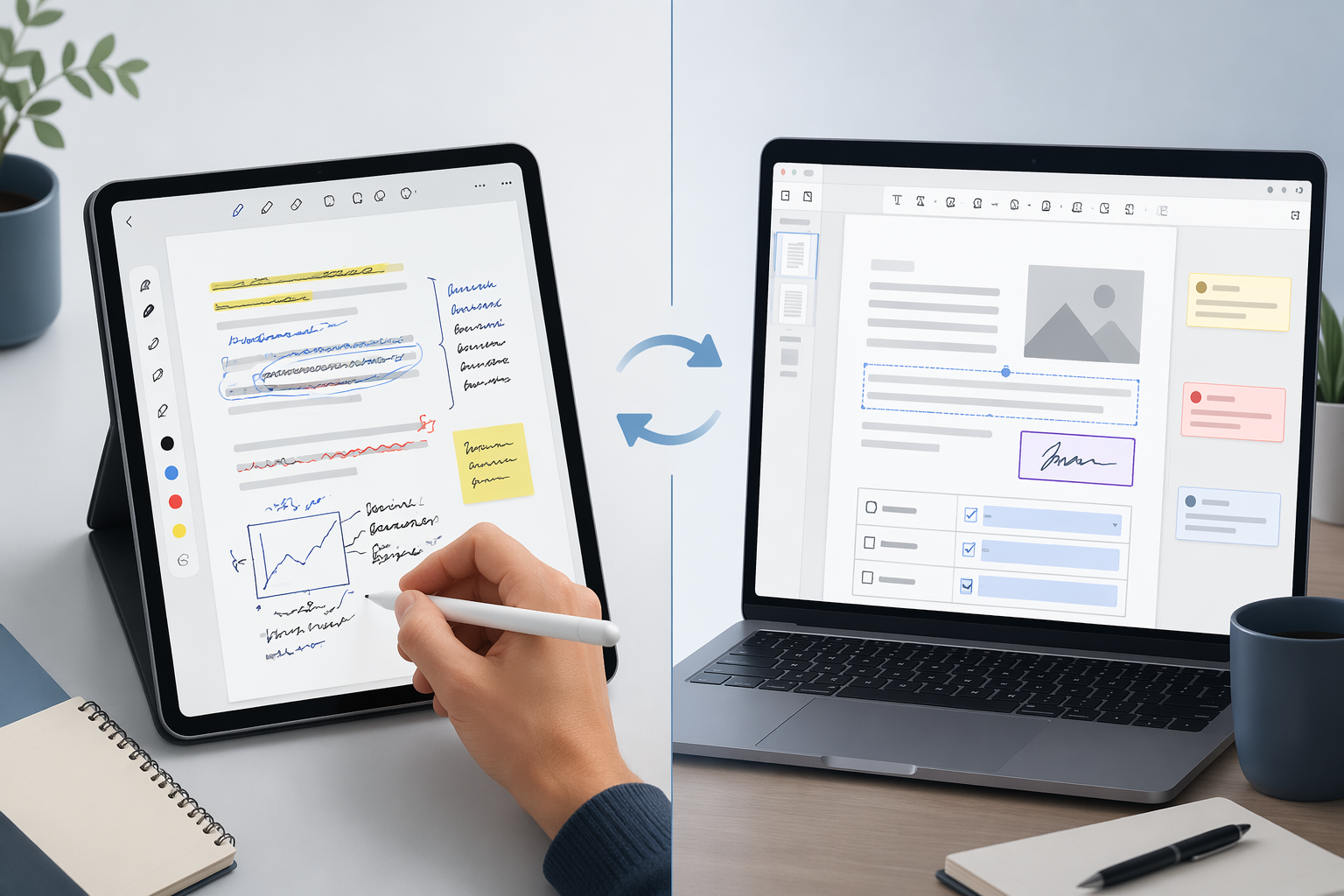
The best choice in 2026 is not one winner. It is a shortlist based on what has to work every day: the pen stroke, the comment trail, the shared review, the device mix, and the price you can defend.
| Use case | Best fit | Why it fits | Watch before choosing |
|---|---|---|---|
| Best cross-platform pen-first annotator | Drawboard PDF | Available on Windows, Mac, iOS, Android, and Web, with real-time collaboration and pen-first PDF annotation positioning; listed plans include Pro Lite at $3.50/month, Pro Plus at $6.99/month, and a student discount at $2.10/month. [1] | Vendor-owned feature claims should be checked against your own device setup, especially if the pen experience matters more than the tool list. |
| Best professional/compliance tool | Adobe Acrobat Pro | Best suited when the PDF itself is the work product: OCR, redaction, measurement tools, editing, and professional review controls. PCMag and ProofHub both place Acrobat in the serious PDF-editing category; listed pricing is $19.99/month. [2][3] | Too much app for casual study notes, and the subscription cost is hard to justify if you only highlight and type comments. |
| Best student audio-and-handwriting workflow | Notability | Strong fit for students who record lectures and sync audio with handwriting. Listed pricing is $14.99/year for the standard plan and $24.99/year with AI features such as flashcards, summaries, and transcription; it is Apple-only across iPad, Mac, and iPhone. [4][5] | Excellent for Apple-first study habits, poor fit for mixed-device teams or Windows/Android users. |
| Best organizational notebook option | GoodNotes 6 | Better when the PDF becomes part of a larger notebook system. Sources highlight handwriting search and organization; listed pricing includes a $9.99 one-time option or $19.99/year. [2][5][6] | Apple-first users get the strongest experience; verify current platform details and pricing before buying. |
| Best free cross-platform choice | OneNote | Free tier with 5 GB storage, broad platform support across Windows, Mac, iOS, Android, and Web, plus OCR; independent app roundups continue to treat it as a serious general note-taking option. [2][6] | PDF handling is good enough for many people, but real-time PDF-style annotation review is limited compared with dedicated tools. |
| Best quick web/mobile annotator | Xodo | Good for fast access, PDF editing, form filling, and lightweight markup; Xodo Web has a free option and Xodo Pro is listed at $4.99/month. [1][3] | Better for quick markup than for deep notebooks, research synthesis, or controlled professional review. |
| Best affordable Acrobat alternative | PDFelement 11 | Useful when you need editing, conversion, and OCR without Acrobat’s subscription profile; listed pricing includes $79.99/year and $159.99 perpetual. [2][3] | More editor than notebook. Test the annotation flow if handwritten notes are central. |
| Best Windows power-user option | PDF-XChange Editor | Strong Windows-only choice with measurement tools, OCR, and redaction; ProofHub lists PDF-XChange Editor Pro at $67.50 one-time. [3] | Excellent value for the right Windows workflow, irrelevant if you need a polished Mac, iPad, Android, or Web routine. |
What Your Workflow Actually Demands
A student marking lecture slides is not doing the same job as a project manager collecting comments on a contract draft. The student may care most about handwriting latency, audio sync, and finding a diagram three weeks later. The manager needs comments that stay attached, reviewers who can see one another’s changes, and a file that does not fracture into five conflicting copies.
Pen-first annotation depends on small physical details: whether the line appears where the stylus lands, whether palm rejection behaves, whether zooming and page turning interrupt the thought, and whether highlights look clean enough to review later. Typed-note workflows ask different questions. Can you search comments? Can reviewers resolve or respond to them? Can you export the marked-up file without losing context? Professional PDF work raises the stakes again because OCR, redaction, forms, measurement, and compliance-ready editing are not decorative features; they determine whether the document can be trusted downstream.
The pricing split follows that workflow split. Students and casual readers can often stay in the $0-$20/year range with tools such as OneNote, GoodNotes, Notability, Xodo Web, or discounted Drawboard plans. Professional PDF editing moves quickly into roughly $80-$240/year territory once OCR, redaction, advanced editing, measurement, collaboration, or AI features enter the requirement list. That is not automatically bad value. It is bad value only when the workflow never needed those controls.
Drawboard PDF: Best When the Pen Is the Center of the Job
Drawboard PDF is the easiest recommendation when the work starts with a stylus and moves across devices. Its appeal is not that it has every PDF feature. It is that it treats PDF annotation as the main event across Windows, Mac, iOS, Android, and Web, with real-time collaboration included in its positioning and pricing tiers that stay relatively approachable: Pro Lite at $3.50/month, Pro Plus at $6.99/month, and a student discount at $2.10/month. [1]
That matters for people who annotate in motion. A consultant marking a deck on a train does not want to rebuild a tool palette every time the device changes. A student moving between a Windows laptop and an iPad does not want the tablet app to feel like the real product and the desktop app to feel like an afterthought. Drawboard’s cross-platform promise is useful because PDF notes often happen exactly where ordinary note apps become awkward: on fixed-page material that must remain visually intact.
The caution is source quality. Drawboard’s strongest claims come from Drawboard’s own material, so the responsible move is to test it on the exact hardware you use. A pen-first app is only as good as the stroke feel on your screen, your stylus, and your PDF sizes. If the trial feels precise and the collaboration model fits your team, Drawboard is the best cross-platform starting point.
Adobe Acrobat Pro: Best When the PDF Has to Hold Up Professionally
Acrobat Pro is not the friendly notebook in this comparison. It is the professional PDF control room. When the job involves OCR, redaction, measurement, forms, editing, or a review process where the document may become evidence, deliverable, or record, Acrobat belongs near the top of the list. PCMag and ProofHub both treat Acrobat as a serious PDF editing tool, and the listed Acrobat Pro price is $19.99/month. [2][3]
That price makes sense for a legal team redacting sensitive material, an operations lead managing form-heavy documents, or an architecture-adjacent workflow that depends on measurement. It makes much less sense for a graduate student who highlights PDFs, writes margin notes, and exports summaries. Acrobat can annotate, but buying Acrobat mainly for handwriting is like using a document management system as a notebook because it has a text box.
The practical test is whether someone downstream depends on the PDF being edited correctly rather than merely marked up. If the answer is yes, Acrobat’s controls justify their place. If the answer is no, the subscription becomes a tax on features you may never open.
Notability and GoodNotes 6: The Apple Student Split
Notability and GoodNotes 6 are often compared because they sit in the same Apple-first study world, but they solve different moments. Notability is the stronger pick when class audio and handwriting need to stay tied together. Its listed standard plan is $14.99/year, with a $24.99/year tier that adds AI features including flashcards, summaries, and transcription, and its platform support is iPad, Mac, and iPhone. [4][5]
That audio-handwriting combination is not a novelty feature for students. It changes what review looks like. Instead of staring at a half-finished equation or a circled slide title and trying to remember what the instructor said, the student can return to the moment when the note was made. For lecture-heavy courses, that is often more valuable than another PDF editing button.
GoodNotes 6 is better when organization and handwriting search are the center of the habit. Sources highlight its notebook structure and handwriting search, with listed pricing of $9.99 one-time or $19.99/year. [2][5][6] If your PDFs become part of course binders, research folders, templates, and handwritten study systems, GoodNotes gives that material a more durable home. For a deeper Apple-focused comparison, the existing GoodNotes vs Notability guide is the better next stop.
The shared limitation is platform reality. These are strongest for people already living on iPad, iPhone, and Mac. If your daily routine includes Windows, Android, Chromebooks, or a browser-first work setup, neither should be treated as a universal PDF note-taking answer.
OneNote: Best When Free and Cross-Platform Matter More Than PDF Polish
OneNote is the tool I would still put in front of a budget-conscious student, a mixed-device family, or a small team that needs shared notes more than perfect PDF handling. It has a free tier with 5 GB of storage, works across Windows, Mac, iOS, Android, and Web, and includes OCR. [2][6]
The trade-off is that OneNote treats the PDF as part of a notebook canvas, not as a controlled PDF review object. That can be fine. A student can drop in slides, write around them, collect class notes, and search across material without paying for another subscription. A project manager can keep background files, meeting notes, screenshots, and rough annotations in one place. But if the PDF needs disciplined comment handling, page-accurate markup exchange, redaction, or review status, OneNote starts to feel soft around the edges.
This is the honest free-tool bargain: excellent access, broad utility, and enough annotation for casual use, but not the PDF-specific control that professional review workflows eventually require.
Xodo: Best for Fast Markup Without Building a Notebook System
Xodo fits the person who needs to open a PDF, mark it, fill a form, maybe make a quick edit, and move on. Drawboard and ProofHub both surface Xodo as a PDF annotation and markup option, and the available pricing data separates Xodo Web free from Xodo Pro at $4.99/month. [1][3]
That simplicity is the point. Not every PDF note-taking workflow deserves a full notebook architecture or a professional editor subscription. If a manager is reviewing a short vendor PDF, or a student is marking a reading once and filing it away, quick access may beat a heavier app with more ceremony.
Xodo is less convincing when the notes need to accumulate into a long-term knowledge system. It can handle markup, but it is not where I would build a research library, a semester-long handwritten notebook, or a formal review process with strict version expectations.
PDFelement 11 and PDF-XChange Editor: Lower-Cost Routes Into Serious PDF Work
PDFelement 11 and PDF-XChange Editor are worth separating from the student-note apps. They are not trying to be beautiful handwritten notebooks. They are for readers who looked at Acrobat, recognized they need real PDF tools, and then looked at the subscription price again.
PDFelement 11 is the more broadly approachable Acrobat alternative. PCMag and ProofHub associate it with PDF editing, OCR, and conversion, with listed pricing at $79.99/year or $159.99 perpetual. [2][3] That makes it plausible for freelancers, small offices, and operations teams that need proper editing tools without standardizing on Acrobat Pro.
PDF-XChange Editor is narrower and more Windows-specific, but that narrowness can be a strength. ProofHub lists PDF-XChange Editor Pro at $67.50 one-time and notes features including measurement tools, OCR, and redaction. [3] For a Windows power user who wants a capable PDF workbench at a one-time price, it deserves attention. For anyone who needs a polished cross-device routine, it is the wrong fit.
LiquidText and Flexcil Belong on the Maybe List
LiquidText and Flexcil come up often enough in PDF note-taking conversations that ignoring them would be strange, but the current material here is not strong enough to treat them as core verdict winners. LiquidText is best understood as a research and deep-reading workspace, especially for people who need to pull ideas across documents. The available pricing notes point to $39.99 one-time on iPad or $14.99/year, but current pricing and feature details should be verified before publication.
Flexcil is more student-centered, with a notebook-plus-PDF side-by-side appeal and available pricing notes of $5.49 one-time on iPad and $11.99 on Android. Those numbers also need current verification. Both tools may be excellent fits for specific study or research habits, but they should be tested as specialized workflows rather than chosen from a generic “best PDF app” label.
Where Free Tools Stop Being Enough
Free PDF note-taking is good enough when the job is basic highlighting, casual comments, rough handwriting, or keeping class material in one searchable notebook. OneNote, Xodo Web, browser PDF tools, and entry-level app plans can cover a surprising amount of ordinary reading and study work.
The upgrade point usually arrives when someone else depends on the result. OCR matters when scanned documents must become searchable. Real-time collaboration matters when several reviewers are working at once. Redaction matters when sensitive content must truly be removed, not covered with a black box. Measurement tools matter when drawings or plans are part of the review. AI summaries, flashcards, and transcription are increasingly common in 2026, but the available pricing data places those features behind paid tiers rather than in the free baseline. [4][5]
Choose Drawboard if cross-platform pen annotation is the priority. Choose Acrobat Pro if document control, redaction, OCR, and compliance-grade editing matter most. Choose Notability or GoodNotes 6 if the work is student-centered and Apple-first, with Notability leaning toward audio-linked study and GoodNotes leaning toward organization. Choose OneNote if free cross-platform notes are enough. Choose Xodo if quick lightweight markup is the whole job. Choose PDFelement 11 or PDF-XChange Editor if you want professional PDF features without Acrobat’s subscription profile.
Once the app is chosen, the next problem is technique: how to mark PDFs so notes remain searchable, reviewable, and useful later. The complete PDF note-taking workflow guide is the better place to solve that part.
References
- Top 9 PDF Annotation Apps to Know in 2026 — Drawboard
- The Best Note-Taking Apps for 2026 — PCMag
- 7 Best PDF Markup Software for Managers in 2026 — ProofHub
- 9 Best Notetaking Apps for Students in 2026 — Drawboard
- The 5 Best Note-Taking Apps in 2026 — Notability Blog
- The 7 Best Note Taking Apps in 2026 — Zapier