
The best MCP tools for personal productivity in Q3 2026 are not the ones with the longest feature lists. They are the ones you can connect, trust for a normal workweek, and remove without feeling as if you have inherited a second job. If you use Claude.ai or ChatGPT in the browser, start with official one-click servers where possible. If you use Claude Desktop or Cursor and are comfortable with terminal installs, community servers open up more options, but they also bring more maintenance risk.
The short version: pick one server tied to a workflow you already use, prove it saves time, then add a second or third server only when it completes a loop. The strongest loop today is research or search into notes, then notes into tasks. That is more useful than connecting ten apps and spending the next month wondering which assistant can see which workspace.
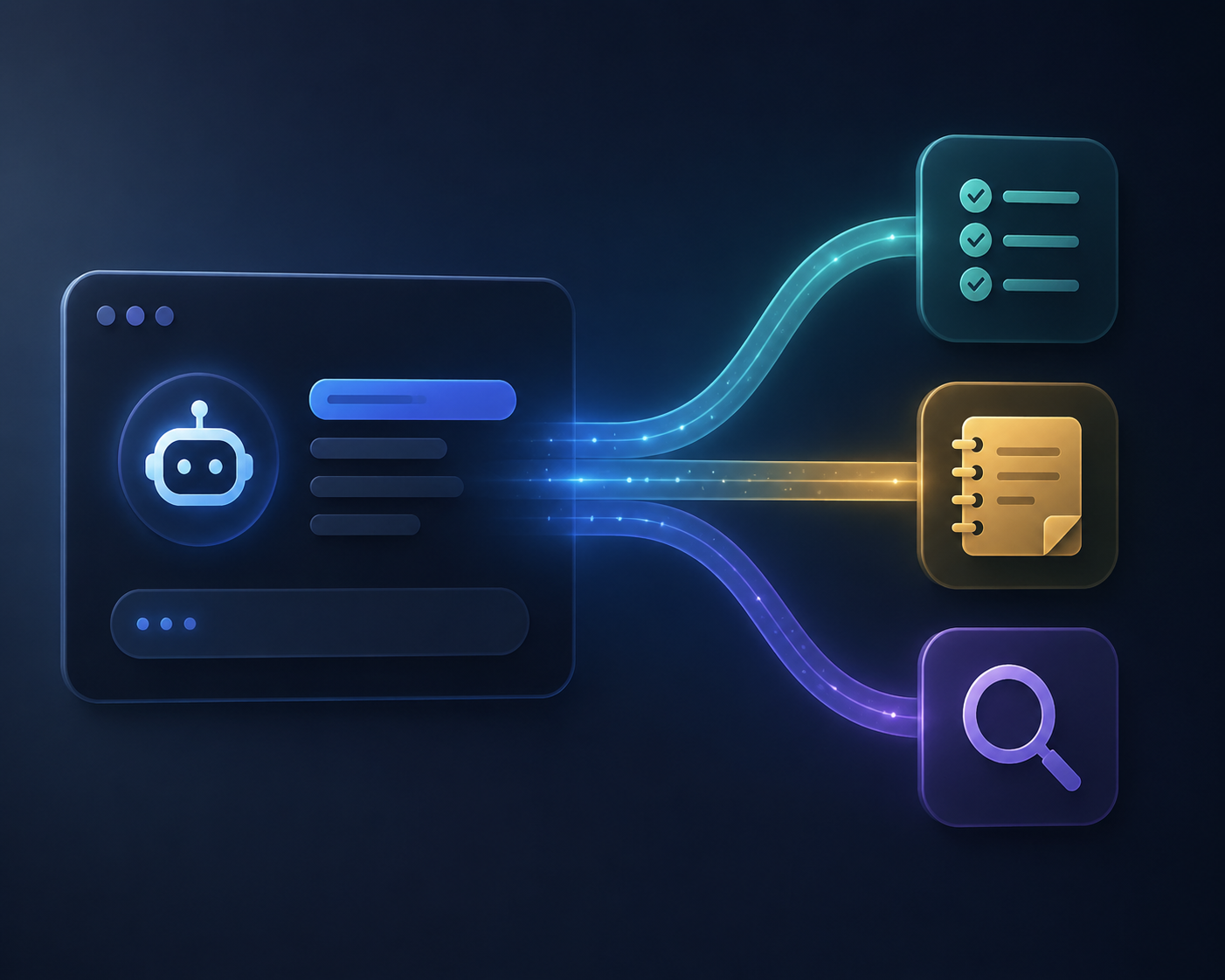
Quick Picks: Which MCP Servers Are Worth Starting With?
| Best fit | Start with | Why it is the safer first setup | Watch out for |
|---|---|---|---|
| Most knowledge workers | Todoist, Notion, or Google Drive | Official connectors are easier to authorize and map cleanly to daily work | Do not connect overlapping task systems at the same time |
| Task-heavy users | Todoist | Deep task, project, section, label, comment, and productivity-stat coverage among pure task managers | Task capture still needs review; AI-created tasks can become clutter |
| People who need help executing, not just capturing | Blitzit | Its MCP angle is tied to focus sessions, Pomodoro-style execution, and daily planning | Best if you already want your task system to drive the work session |
| Workspace-in-one users | Notion | Sits across tasks, docs, wikis, and databases | Messy Notion databases make messy AI actions |
| Teams living in chat | Slack | Official communication option with practical value for summarizing and retrieving work context | Message access needs careful workspace permissions |
| Tinkerers and power users | Obsidian, TickTick, Linear, Google Tasks, Microsoft To Do, OmniFocus, Brave Search, Perplexity, Firecrawl | Community servers can unlock tools that do not yet have official MCP support | Expect API tokens, local config, client restarts, and possible breakage |
Task management is the most mature personal-productivity category. One vendor comparison counts at least ten task apps with MCP servers as of mid-2026, with five official servers: Todoist, Blitzit, Notion, ClickUp, and Asana. The other five named options in that comparison, TickTick, Linear, Google Tasks, Microsoft To Do, and OmniFocus, depend on community servers.[1]
That official-versus-community split matters more than the logo on the integration page. Official servers generally use OAuth and do not ask you to paste API keys into local files; community servers commonly require API-token generation and local configuration.[2] For someone who mainly uses the Claude or ChatGPT web app, the client-support split is just as important: official servers such as Todoist, Notion, Asana, and Blitzit are reported as supporting Claude.ai and ChatGPT through built-in connectors, while community servers are usually Claude Desktop-oriented and require local installation.[2]
The Main Comparison
| Category | Representative MCP servers | Official or community | Typical AI client support | Setup difficulty | Best-fit user |
|---|---|---|---|---|---|
| Task management | Todoist, Blitzit, Notion, ClickUp, Asana | Official | Claude.ai and ChatGPT built-in connectors reported for Todoist, Notion, Asana, and Blitzit | Easy | Non-developers who want read-write productivity actions without local config |
| Task management | TickTick, Linear, Google Tasks, Microsoft To Do, OmniFocus | Community | Usually Claude Desktop or local MCP clients | Requires CLI | Power users who are comfortable maintaining tokens and config files |
| Note-taking and knowledge | Notion, Google Drive | Official | Web-client-friendly where connectors are available | Easy | People who want AI to retrieve, summarize, and update work knowledge |
| Note-taking and knowledge | Obsidian | Community | Usually Claude Desktop or local MCP clients | Requires CLI | Local-first note users who accept setup overhead |
| Communication | Slack | Official | Built-in connector support where available | Easy | Teams that already use Slack as the memory of work |
| Research and search | Brave Search, Perplexity, Firecrawl | Community | Usually local MCP clients | Moderate to requires CLI | Users who want assistant-assisted research with external search or page extraction |
| Automation | Zapier, n8n | Community | Usually local or platform-specific setup | Moderate to requires CLI | Users who already understand automation triggers and permissions |
The table is deliberately biased toward setup reality. A server that can technically do more is not automatically the better personal-productivity choice if it only works in a client you do not use. If your assistant lives in Claude.ai or ChatGPT, built-in connector support is not a footnote; it is the difference between an afternoon of work and a settings-panel authorization.
For a broader comparison of where Claude and ChatGPT fit into daily work, see Claude Projects vs ChatGPT Projects. MCP support changes the value of those tools because the assistant is no longer limited to pasted context; it can reach into the systems where work is already happening.
What “Easy” Actually Means
MCP setup difficulty needs plainer language than most roundups give it. “Supports MCP” can mean anything from clicking a connector button to installing packages, creating a token, editing a JSON file, restarting a desktop client, and then debugging why the assistant still cannot see the tool.
| Rating | What you do | Typical time | Who should choose it |
|---|---|---|---|
| Easy | Open Claude.ai or ChatGPT settings, choose a connector, approve OAuth | About 1-2 minutes | Most non-developer knowledge workers |
| Moderate | Create an account or cloud connection, paste a key into a guided interface, check permissions | Several minutes, depending on the tool | Power users who are comfortable with API-style setup but do not want local maintenance |
| Requires CLI | Install with npm or pip, generate an API token, edit local JSON config, restart the client | Often 20+ minutes | Users who are comfortable troubleshooting local developer-style tooling |
There is nothing morally superior about avoiding the terminal. The issue is fit. If a tool is part of your daily capture, planning, and review routine, reliability is part of the feature set. Quire’s 2026 analysis gives the right warning for community servers: coverage may be partial, and when the underlying app changes its API, the community maintainer may or may not update quickly.[3]
That risk is tolerable for an occasional research helper. It is more annoying when your assistant fails to create the task you were counting on during a busy Monday morning.
Task Management Is the Most Mature Category
If you only test one category of MCP tools for personal productivity, make it tasks. This is where the ecosystem has the clearest official-server coverage, the most obvious daily payoff, and the easiest way to judge whether AI access is actually useful. A good task server lets the assistant read projects, add tasks, update status, and attach enough context that the task is usable later.
| Server | Status | Strength | Setup posture | Best use |
|---|---|---|---|---|
| Todoist | Official | Full CRUD for tasks, projects, sections, labels, comments, and productivity stats | Easy | A clean, dedicated task system with deep AI-accessible structure |
| Blitzit | Official | Task creation tied to focus, Pomodoro timer, and daily planning | Easy | Turning captured tasks into an execution session |
| Notion | Official | Tasks, docs, wikis, and databases in one workspace | Easy | Users whose tasks already live beside knowledge and project notes |
| ClickUp | Official | Project and task management coverage for heavier workspaces | Easy to moderate | Users already committed to ClickUp as their work hub |
| Asana | Official | Team task and project management integration | Easy | Shared team workflows where permissions and project structure already exist |
| TickTick | Community | Access for TickTick users where no official server is available | Requires CLI | Power users who prefer TickTick enough to accept maintenance |
| Linear | Community | Issue-style task tracking | Requires CLI | Developer-adjacent users who already work in Linear |
| Google Tasks | Community | Simple task capture tied to Google accounts | Requires CLI | Users who want lightweight task access and accept local setup |
| Microsoft To Do | Community | Microsoft ecosystem task access | Requires CLI | Microsoft-heavy users without an official MCP option |
| OmniFocus | Community | Advanced personal task management | Requires CLI | OmniFocus loyalists who are comfortable tinkering |
Todoist is the easiest default recommendation for a dedicated task manager because its official MCP server has unusually broad coverage: tasks, projects, sections, labels, comments, and productivity stats are all listed in its API-depth comparison.[1] That matters because “create a task” is only the first minute of usefulness. The real work is putting the task in the right project, giving it a useful label, attaching the comment that explains why it exists, and letting the assistant later retrieve it without guesswork.
Blitzit is interesting for a different reason. Its MCP server is positioned around execution: AI-created tasks can feed into daily planning and focus sessions with a Pomodoro timer.[1] That is a narrower but sharper promise. If your current failure mode is not forgetting tasks but failing to start them, Blitzit deserves more attention than a generic feature checklist might give it.
Notion sits between task management and knowledge management. Its database model lets the same assistant interaction touch project docs, meeting notes, wikis, and task databases, which is powerful if your Notion workspace is already disciplined.[1] If the workspace is a junk drawer, MCP will not magically turn it into an operating system. It will just give the assistant access to the drawer.
The community task servers are not bad choices by definition. TickTick, Linear, Google Tasks, Microsoft To Do, and OmniFocus all have plausible users who should prefer them over migrating to Todoist just for MCP. But the decision should be conscious: you are trading official OAuth convenience and likely web-client support for loyalty to an existing task system.
Notes and Knowledge: Notion and Google Drive Are the Practical Starts
Note-taking MCP support is useful, but the category is less evenly developed than tasks. The practical official options are Notion and Google Drive; Obsidian is available through community servers.[4][5] That split maps closely to how people already work. If your knowledge base is collaborative and cloud-first, official connectors are more likely to feel natural. If your notes are local-first Markdown files, you can get MCP access, but you should expect a more hands-on setup.
The best use case is not “let AI read all my notes.” It is narrower: ask the assistant to retrieve the right source material, summarize it into a project note, and then create the next action in the task system. That keeps the assistant close to a real workflow instead of turning your knowledge base into an all-you-can-eat context buffet.
Google Drive is especially useful when work already lives in docs and shared folders. Notion is stronger when the note, database, and task live in the same workspace. Obsidian remains appealing for people who value local files and personal knowledge management, but its community-server posture puts it in the “worth it if you know why you want it” group rather than the first recommendation for a non-developer.
Communication: Slack Is the One to Care About First
Communication does not need a long catalog. Slack is the important personal-productivity example because it is both an official MCP option and the place where many teams accidentally store decisions, blockers, links, and commitments.[4] A useful Slack connection lets the assistant find the thread where a decision happened, summarize unresolved items, or help turn a conversation into a follow-up.
The caution is permission scope. A task manager mostly exposes your own work. Slack can expose other people’s messages and private team context. Before connecting it, check what the assistant can access, whether your workspace allows it, and whether the benefit is retrieval or just novelty.
Research and Search: Useful, but Usually Not One-Click
Research and search servers are where MCP starts feeling like a genuine assistant upgrade. Brave Search, Perplexity, and Firecrawl appear in current productivity/server directories, but they are community options rather than the same kind of first-party connector experience as Todoist or Slack.[4][5] That makes them better as a second step than a first one.
The payoff is obvious once you pair search with notes. The assistant can gather current material, place the useful parts into a note or project document, and then create a follow-up task. A July 2025 practical guide documented this kind of multi-server pattern: research search into note-taking into task creation inside one AI-assisted workflow.[6]
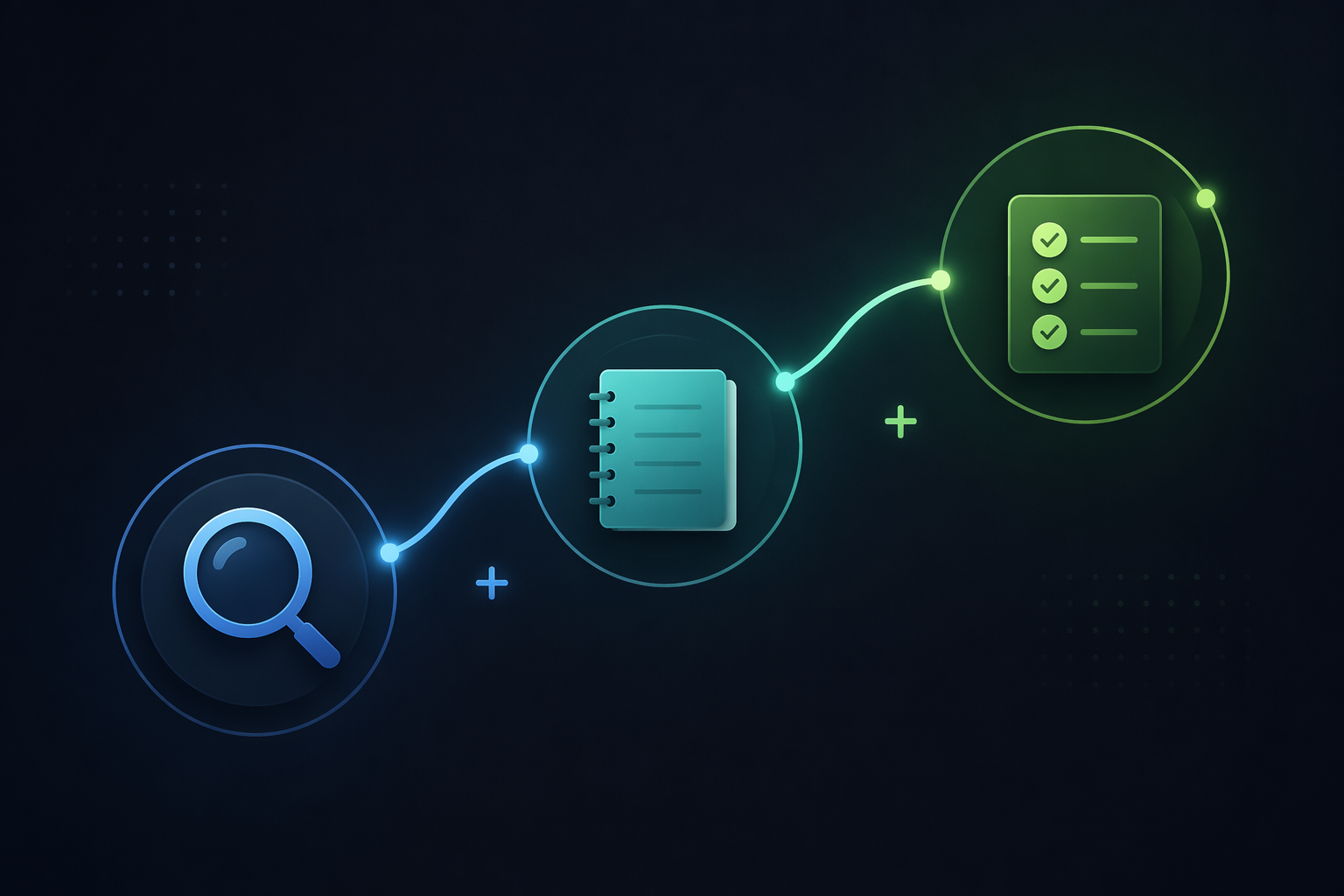
This is also where a deliberately small setup beats a maximal one. One search server plus one note server plus one task server is enough to test whether AI is reducing friction. If that loop does not save time, adding calendar, email, CRM, and automation servers will not fix the underlying problem.
For a broader version of this stack idea, see The AI Productivity Stack That Actually Works. MCP makes that stack more concrete because the assistant can operate across tools instead of only producing advice.
Automation: Do Not Start Here Unless You Already Automate
Zapier and n8n belong in the MCP productivity conversation, but they should not become the default starting point. Current directories list both in the automation side of the ecosystem, with n8n requiring either self-hosting or a cloud account.[4][5] That is a different mental model from connecting a task app.
Automation servers are best when you already know the process you want to run: create a lead record, send a notification, update a spreadsheet, open a ticket, or trigger a workflow after a specific event. If the process is still fuzzy, MCP adds another layer of ambiguity. You are no longer only deciding what should happen; you are deciding which assistant, connector, workflow platform, and permission model should be responsible for it.
If automation is the real goal, compare the platforms first. The tradeoffs are closer to workflow automation platform selection than to choosing a notes app. Non-technical users may also want a gentler setup path through workflow automation tools for non-technical users before putting MCP in the middle.
A Small Rollout That Actually Holds Together
A good MCP rollout is boring at first. That is a feature. Start with one official server already tied to a system you use every day. If you live in Todoist, connect Todoist. If your work is organized in Notion, connect Notion. If shared documents are the center of gravity, start with Google Drive. Use it for a week before adding anything else.
| Phase | Add | What to test | Move on only if |
|---|---|---|---|
| 1 | One official core-work server | Can the assistant retrieve and update real work without cleanup? | You use it more than once after the novelty wears off |
| 2 | Research/search or notes | Can the assistant bring outside material into the place where you think? | The output lands somewhere you will actually review |
| 3 | Task creation | Can the assistant turn the note or decision into a clear next action? | Tasks arrive in the right project with enough context to execute |
| 4 | Automation | Can a repeatable workflow run with acceptable permissions and failure modes? | The process is already stable without AI improvising the rules |
The order can change, but the principle should not. Each new server should complete a loop that was already visible. Research without notes becomes a pile of summarized links. Notes without tasks become a nicer archive. Tasks without review become AI-generated residue. The useful version is smaller: find the material, save the useful context, create the next action.
A hypothetical example is enough to show the shape. You ask the assistant to research vendors for a project, it uses a search server to collect current options, writes a comparison note in Notion or Google Drive, then creates two Todoist tasks: review the shortlist and email the stakeholder. Nothing magical happens. Three small handoffs disappear.
That is the standard I would use for every MCP server in a personal setup. Does it remove a handoff, or does it create a dashboard? Does it use an official connector, or am I now responsible for a local configuration? Does it work in the AI client I actually use, or only in the one I installed for testing? The answers are usually more revealing than the feature grid.
The Practical Verdict for Q3 2026
MCP is now useful enough for personal productivity, but the best setup is deliberately small. Start official where possible. Prefer OAuth and built-in Claude.ai or ChatGPT connectors when they exist. Treat community servers as worthwhile power-user options, not as equivalent to one-click setup.
For most people, the strongest first choices are Todoist for dedicated tasks, Notion for mixed knowledge and task workflows, Google Drive for document-centered work, and Slack for team communication. Add Brave Search, Perplexity, or Firecrawl only when research is a real part of the loop. Add Zapier or n8n only when the workflow is already defined well enough to automate.
There is no universal best MCP server. There is a best first connection for the work you already do, and then maybe a second and third connection that make the loop shorter.
References
- Best To-Do List Apps With MCP Servers, Blitzit.
- Best MCP servers for AI agents in 2026, Toloka, April 2026.
- Project Management Tools That Speak MCP, Quire, May 2026.
- Awesome MCP Servers: Directory, K2View.
- Productivity & Workflow MCP Servers, MCPMarket.
- How I Finally Turned AI Into My Personal Operating System, Substack, July 2025.