
The awkward moment with google sheets ai usually does not happen when someone asks for a formula. It happens one task later: the first request works, the sheet looks smarter, and then the next file has 8,000 rows, three source tabs, a messy export from a CRM, and a manager waiting for the same thing every Monday.
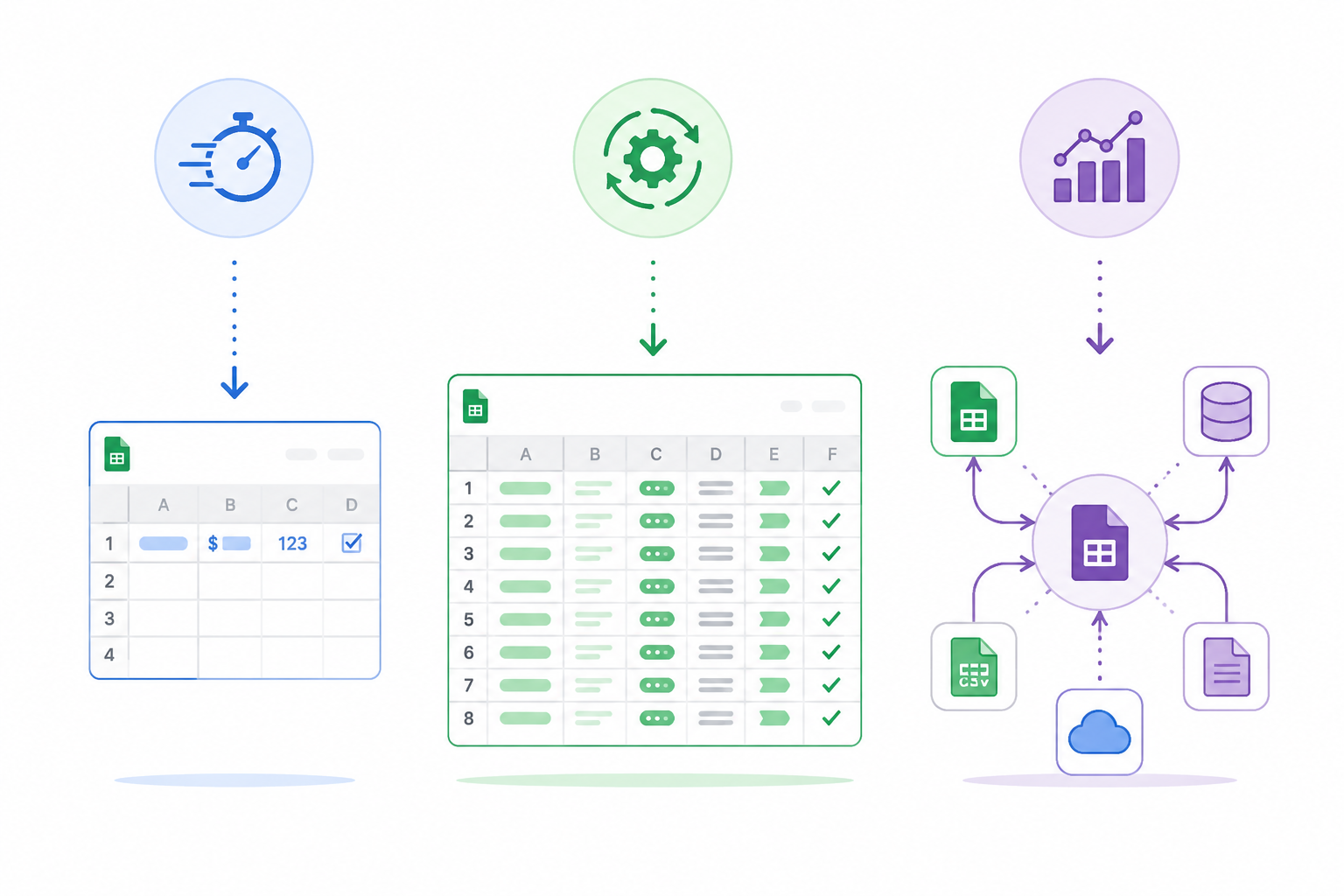
That is where the choice stops being “use AI or do it manually.” In 2026, Google Sheets AI is better understood as three layers: native Gemini inside Sheets, third-party add-ons that run AI across cells at higher volume, and external platforms that pull Sheets into a broader analysis workflow. They overlap at the edges, but they are not interchangeable.

The Quick Decision Map
| Layer | Best use | Volume tolerance | Speed and limit signals | Feature strengths | Pricing shape, last verified July 2026 | Not for you if |
|---|---|---|---|---|---|---|
| Native Gemini in Google Sheets | Quick formulas, small cleanups, formatting help, charts, pivot tables, heatmaps, and contextual spreadsheet edits | Small selected ranges, not bulk classification runs | Google says the =AI() function generates content for only the first 350 selected cells and is subject to daily limits; a vendor-published benchmark reported about 42 rows per minute | Lives directly in Sheets; can create visual and structural spreadsheet outputs rather than only filling text cells | Included in eligible Google Workspace experiences; advanced Gemini features can depend on plan or add-on availability | You need to process thousands of rows unattended or choose among multiple AI models |
| Third-party Google Sheets add-ons | Bulk text classification, generation, enrichment, extraction, and repeatable cell-level AI runs | Medium to very large sheet workloads, depending on the add-on | GPT for Work reports up to 1 million rows per run and a benchmark around 5,700 rows per minute with gpt-4o; other add-ons trade scale for simplicity or price | Model choice, batch execution, credit packs, no-code instructions in cells, live-source sync in some tools | Ranges from low-cost subscriptions such as $5–$5.99 per month to higher-priced workflow tools and credit packs | You mainly need charts, pivots, or formatting created natively inside the sheet |
| External AI analysis platforms | Cross-source analysis across Sheets, databases, CSVs, and other files | Best when the dataset or question no longer fits neatly inside one workbook | Less about cell-fill speed; more about joining sources and producing broader analysis or reporting | Multi-source joins, dataset-level analysis, conversational reporting, and workflow outputs outside Sheets | Subscription pricing; exact value depends on whether the team is willing to move part of the workflow out of Sheets | The job is simply to fill, classify, or clean a column already sitting in Sheets |
The table matters because a 50-row helper and a 500,000-row classifier are not the same buying decision. The first is a convenience question. The second is an operations question: how many runs, how much waiting, what happens when a limit is hit, and whether the output lands back where the team reviews it.
Native Gemini Is Strongest When the Work Stays Small and Contextual
Gemini’s biggest advantage is not that it is the most powerful AI system someone can point at a spreadsheet. Its advantage is that it is already in the place where the work is happening. For a Google Workspace user cleaning a small table, asking for a formula, turning a range into a chart, adding a heatmap, or making a pivot table presentable, that matters.
Google’s documentation for the =AI() function is the first boundary to read closely: it says the function generates content for “the first 350 selected cells” and is subject to daily limits.[1] That is a perfectly workable ceiling for quick spreadsheet assistance. It is also a warning label for anyone imagining a quiet overnight enrichment run across a large export.
Fill with Gemini adds another wrinkle. Google announced it in April 2026 for automating data entry in Sheets, but the higher promotional limits are scheduled to expire on July 15, 2026, after which per-user limits apply.[2] For a team building a recurring process in Q3 2026, that date is not a footnote. It changes whether a workflow is safely repeatable or just comfortable during a promotional window.
The speed comparison is also useful, with one caveat. GPT for Work’s own published comparison reports Gemini’s =AI() function at about 42 rows per minute and GPT for Sheets at about 5,700 rows per minute using gpt-4o.[3] Because that benchmark comes from a vendor with a product in the comparison, it should be treated as directional evidence rather than an independent lab result. Still, the order-of-magnitude difference matches the practical shape of the tools: Gemini is a native assistant; bulk add-ons are built to push through rows.
The mistake is not using Gemini. The mistake is asking Gemini to behave like a batch-processing engine and then blaming the spreadsheet when someone has to restart, split ranges, or watch limits manually. If the task is “help me make this sheet clearer,” Gemini belongs in the conversation. If the task is “classify every row in this large export before the morning meeting,” start comparing add-ons.
Where Gemini Has a Real Native Edge
There are jobs where staying native is not just convenient but cleaner. Google has emphasized Gemini updates across Docs, Sheets, Slides, and Drive, including spreadsheet assistance that can help users create charts, pivot tables, heatmaps, and formatting directly inside Sheets.[4] That is different from an add-on filling a column with generated text. A chart that appears where the workbook already lives removes a handoff.
Gemini also has evidence that it is improving on real spreadsheet-editing tasks. Google reported that Gemini achieved 70.48% on SpreadsheetBench in March 2026, a benchmark focused on real-world spreadsheet editing tasks.[4] That number should not be stretched into “Gemini is best for all spreadsheet work.” It is better read as support for the narrower claim: native spreadsheet editing is becoming a legitimate strength, especially when the output is a changed sheet rather than a massive generated column.
Add-ons Are the Bulk Layer, but They Do Not All Solve the Same Bulk Problem
Third-party add-ons sit in the middle layer: still close to Google Sheets, but less constrained by native Gemini’s small-run posture. This is where the spreadsheet starts acting like an AI workbench for classification, enrichment, extraction, translation, product copy, sales research, support tagging, and other row-by-row jobs.
The right add-on depends less on which logo looks familiar and more on the workload. A team that needs model choice and high-volume runs has different needs from a student worker trying to clean 300 survey responses without setting up an API key. A revenue operations team pulling from live systems has a different problem again.
| Add-on | Best fit | What to watch |
|---|---|---|
| GPT for Work | High-volume AI runs in Sheets with model choice across GPT-5.1, Claude 4.5 Sonnet, Gemini 2.5 Flash, and Perplexity; vendor materials report support for up to 1 million rows per run | The strongest speed and scale claims are vendor-published, so use them as a screening signal and test with your own workbook before standardizing |
| Numerous.ai | Low-cost bulk AI entry for teams that want a simple add-on without managing an API key | Cheapest does not automatically mean best for governance, model choice, or repeatable operations |
| SheetAI | Low-friction setup for non-technical users; useful when the priority is getting started inside Sheets quickly | Free or low-cost access can be appealing, but large recurring jobs still need limit and pricing checks |
| Coefficient | Live-data workflows, especially when Sheets needs to stay connected to business systems | Useful when source freshness matters; unnecessary if the data is a one-time CSV |
| o11 | Workbook-aware analysis that can read more spreadsheet structure and push results into Slides or Docs | A better fit for analysis and reporting workflows than simple single-column generation |
GPT for Work is the clearest example of the bulk-processing end of this layer. Its 2026 guide lists model choice across GPT-5.1, Claude 4.5 Sonnet, Gemini 2.5 Flash, and Perplexity, and its comparison materials report support for up to 1 million rows per run.[3][5] That does not mean every team should buy it first. It means that when the problem is throughput, repeatable instructions, and model selection, it belongs on the shortlist.
Numerous.ai and SheetAI aim at a different kind of friction. The same 2026 tool guide lists Numerous.ai’s Starter plan at $5 per month and SheetAI Pro at $5.99 per month, with SheetAI positioned as a low-friction option for non-technical users and a usable free tier.[5] Last verified: July 2026. Those prices make sense for teams that are not yet sure whether spreadsheet AI will become a weekly process or stay an occasional cleanup shortcut.
Coefficient is not just another prompt-in-a-cell tool. Its Pro plan is listed at $49 per month, and its differentiator is connecting to more than 150 live data sources with two-way sync.[5] Last verified: July 2026. That makes it more relevant when the spreadsheet is a live operating surface: pipeline updates, campaign data, finance snapshots, customer lists. If the source data changes constantly, the AI feature is only part of the story; the connection layer may be the reason to use it.
o11 sits closer to analysis and reporting. Its own 2026 Google Sheets tools roundup describes capabilities around reading workbook structure and moving analysis into formats such as Slides or Docs.[6] Because that is a vendor source, the fair reading is not “o11 is objectively better.” The fair reading is that workbook-aware output is a different job from filling cells, and teams that live in review decks may care about that handoff.
The Native-versus-Add-on Boundary
The most common wrong turn is assuming that because Gemini is inside Sheets, it should be the default for every Sheets task. Native placement is valuable, but it is not the same as scale readiness. The practical boundary is usually visible before anyone installs anything:
- Use Gemini when the output is a better sheet: a formula, chart, pivot table, heatmap, conditional formatting, or a small generated range.
- Use an add-on when the output is a processed column or table: classification, tagging, summarization, extraction, rewriting, or enrichment across many rows.
- Test limits with the real sheet, not a toy sample, when the process will run weekly or be handed to someone else.
- Check whether the team needs model choice, because native Gemini does not give the same model-selection surface that some add-ons provide.
- Treat any vendor speed claim as a starting signal, then benchmark the actual instruction, data shape, and review process.
A small customer-feedback sheet is a good example. If someone wants help summarizing themes, formatting the sheet, or creating a chart for a meeting, Gemini keeps the work tidy. If the same team later needs to classify every response from multiple monthly exports, track confidence, rerun prompts, and compare model output, the add-on layer becomes more defensible.
External Platforms Are for Cross-Source Questions, Not Faster Cell Filling
External platforms are the escalation point when the question stops being “do this to cells in my sheet” and becomes “explain what is happening across these sources.” That distinction keeps the category from turning into a vague pile of AI analytics tools.
camelAI describes workflows that connect Google Sheets with databases and other file formats for broader analysis, rather than only operating inside one spreadsheet.[7] Querri is typically discussed in the same external-platform lane: the value is not that it fills a column faster than a Sheets add-on, but that it can help join and analyze data that no longer lives in a single workbook.
That boundary matters for workflow migration. If the team’s review, approvals, and edits all happen in Google Sheets, moving the work outside the sheet creates another place to check. Sometimes that is worth it. A cross-source report that combines spreadsheet data, database records, and files may need a broader workspace. A one-column classification job probably does not.
AI-native spreadsheet platforms sit near this same decision boundary. They can be attractive when a team is willing to move away from Google Sheets as the main operating surface. That is a larger choice than installing an add-on. It changes where formulas live, where collaborators comment, where permissions are managed, and where the next person expects to find the latest version. For a broader cross-platform view, see AI Spreadsheet Assistants Compared: Native, Add-On, or AI-Native Platforms.
A Practical Layered Recommendation
Start with the workload, then pick the layer. If the job is small, visual, and already inside Sheets, use Gemini first. It has the least workflow disruption and the strongest native fit for formulas, charts, pivots, heatmaps, and formatting. Keep the 350-cell =AI() generation limit, daily limits, and July 15, 2026 Fill with Gemini promotional-limit expiration visible when the task may repeat or grow.[1][2]
Move to add-ons when volume, repeatability, or model choice becomes the issue. GPT for Work fits the high-volume and model-selectable end of that layer; Numerous.ai and SheetAI lower the cost and setup barrier; Coefficient is stronger when live data connections matter; o11 is more interesting when workbook-aware analysis needs to travel into documents or decks.[3][5][6]
Move to external platforms when the analysis crosses source boundaries. If the useful answer requires sheets, databases, CSVs, and other files to be joined or interpreted together, staying inside a single workbook can become the constraint rather than the convenience.[7]
Most teams will not crown one winner. They will use Gemini for the quick in-sheet work, an add-on for the bulk runs, and an external platform only when the question outgrows the workbook. That is less tidy than a single-tool recommendation, but it is much closer to how spreadsheet work actually breaks.
References
- Use the AI function in Google Sheets, Google Support, https://support.google.com/docs/answer/15820999
- Effortlessly automate data entry in Google Sheets using Fill with Gemini, Google Workspace Updates, April 2026, https://workspaceupdates.googleblog.com/2026/04/
- AI in Google Sheets: GPT for Sheets vs. Gemini in Sheets, GPT for Work, https://gptforwork.com/blog/gpt-for-sheets-vs-gemini-in-sheets
- Google shares Gemini updates to Docs, Sheets, Slides and Drive, Google Blog, March 2026, https://blog.google/products-and-platforms/products/workspace/gemini-workspace-updates-march-2026/
- 10 Best AI Tools for Data Analysis in Excel & Google Sheets (2026 Guide), GPT for Work, https://gptforwork.com/blog/best-ai-tools-excel-google-sheets
- Top 10 AI Tools for Google Sheets in 2026, o11 Blog, https://o11.ai/blog/top-10-ai-tools-google-sheets-2026
- How to Use AI with Google Sheets in 2026, camelAI Blog, https://camelai.com/blog/how-to-use-ai-with-google-sheets-2026