
The Galaxy Watch 8 starts earning its place during the boring moments: checking the next meeting while walking between rooms, sending a short reply without opening Messages, capturing a thought before it turns into another unlocked-phone detour. The point is not to turn the watch into a tiny phone. The point is to make it a filter and command surface, so the phone stays face-down more often.
A realistic setup takes about 20 minutes. The target is 30 or more avoided phone pickups on a workday, but treat that as a test, not a guarantee. The people who get the most from these Samsung Galaxy Watch 8 productivity features are Watch 8 owners using Samsung phones, with the cellular model gaining the most independence once LTE is actually activated. Samsung lists LTE models at a $50 premium over Bluetooth models, so if you paid for cellular and never set up the eSIM, that is the first expensive lever sitting unused.[1]
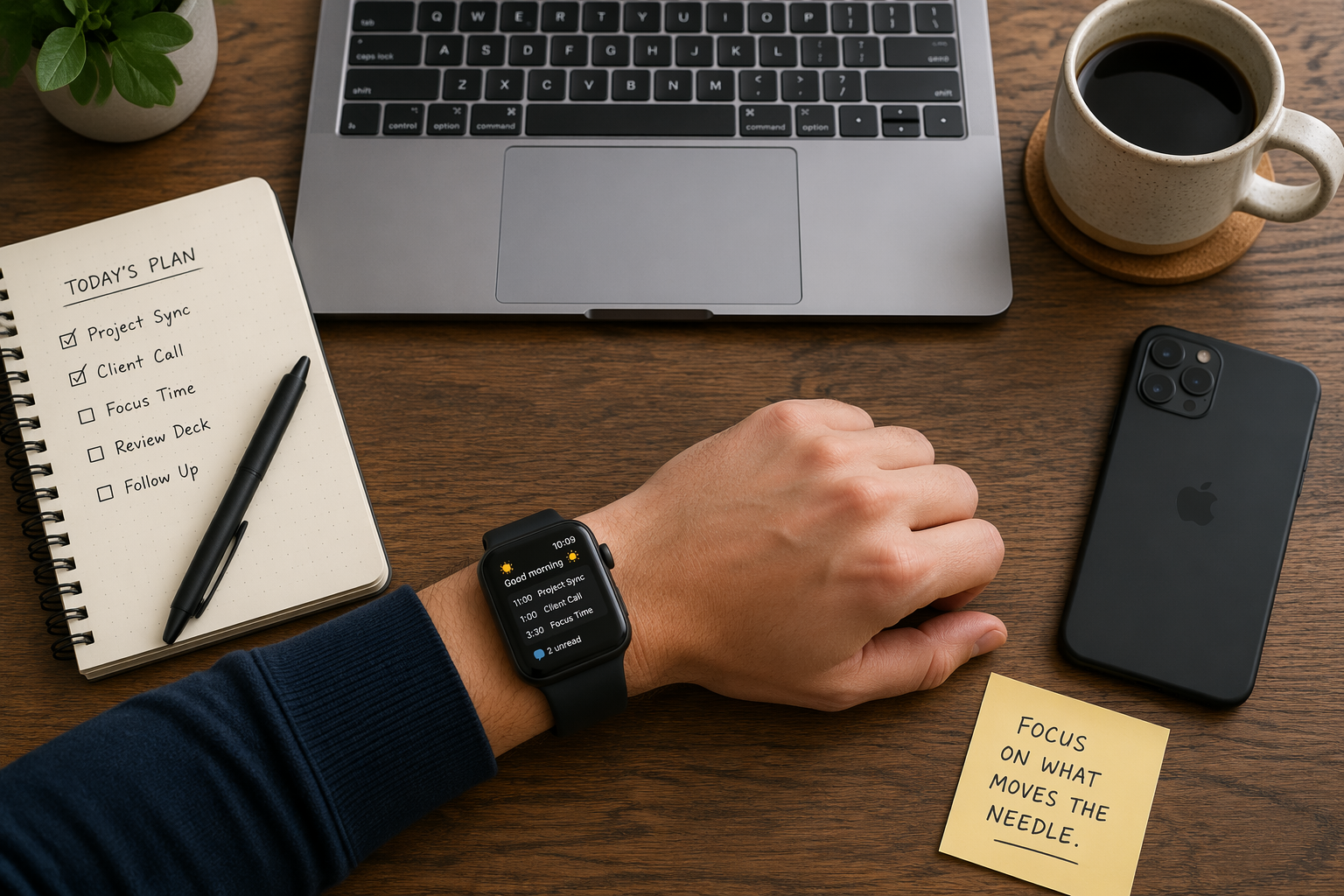
Start by defining what the watch is allowed to replace
A replaced phone check is not a vague feeling of being more productive. Count it only when the watch lets you complete the thing you would normally unlock the phone for: confirm the next appointment, triage a notification, reply to a simple message, start a timer, record a note, check the weather before leaving, or mark a task without opening a full app.
Do not try to move deep work to the wrist. Long email, document review, spreadsheet edits, calendar surgery, and anything that needs careful reading still belong on a larger screen. The Watch 8 is useful when the interaction is short and the cost of opening the phone is high, because the phone rarely opens to just one thing.
| Phone pickup to replace | Watch 8 setting that can replace it |
|---|---|
| Checking the next meeting | Daily Dashboard complication or Calendar tile |
| Opening the phone to see whether a message matters | Filtered notifications plus double-pinch scrolling |
| Capturing a quick thought | Quick Button mapped to Voice Recorder or Gemini |
| Changing workday alert behavior | Modes triggered by time, location, or Wi-Fi |
| Leaving the desk without the phone | LTE calling and messaging on the cellular model |
| Surviving a long workday | Power Saving and always-on display choices |
Build the glance layer before touching shortcuts
The fastest watch interaction is the one that ends after a wrist raise. That makes the watch face and tile stack more important than any single app. Samsung says the Daily Dashboard watch face can show up to 8 complications, and Android Central notes that stacked tiles can hold up to 11 widgets per tile.[1][2] That is enough density to stop treating the face as decoration.
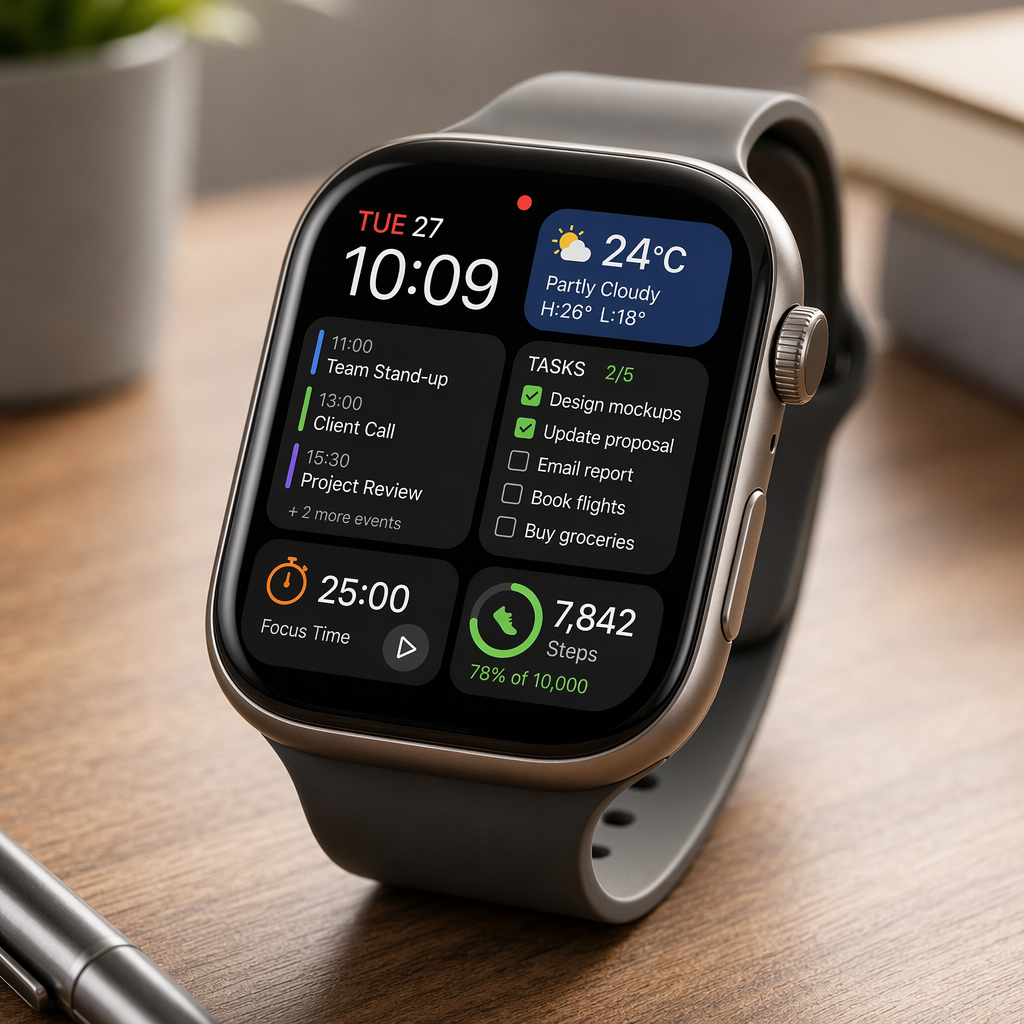
For workday use, the best Daily Dashboard layout is boring on purpose. Put the next calendar event where your eye lands first. Add weather if commute decisions matter. Add battery because the watch is only useful if it survives the day. Add one health metric if you want it, but do not let steps crowd out calendar, tasks, timer, or recorder access during work hours.
- Calendar: use this for the next event, not a full schedule view.
- Tasks or reminders: surface the next action, not an entire project list.
- Weather: keep it if it changes whether you leave now, bring a jacket, or carry a bag.
- Battery: keep it visible if you plan to use LTE, Gemini, or always-on display.
- Timer or alarm: useful for meeting breaks, focus blocks, and cooking lunch without waking the phone.
Then build one stacked tile for work. Put Calendar, Tasks, Weather, Timer, and Voice Recorder close together. If your stack becomes a sideways junk drawer, it stops replacing phone checks and starts becoming another thing to scroll. The useful test is simple: can you raise your wrist, swipe once, and answer the question that made you reach for the phone?
Remap the button to actions that deserve muscle memory
Button mapping is where the Watch 8 stops feeling like a miniature app launcher. Samsung’s own productivity guidance calls out the Quick Button as a key setup area, and the useful part is not novelty; it is repeatability.[3] A double-press or long-press should launch something you use under mild friction: when walking, holding coffee, entering a meeting, or trying not to open the phone.
Start with the Quick Button or hardware shortcut menu in the Wearable app, then assign the fastest action to the gesture you can hit without looking. For most workdays, Voice Recorder, Calendar, and Assistant access beat flashier shortcuts. Voice Recorder captures thoughts without asking you to decide where they belong yet. Calendar answers the most common wrist question. Gemini is useful when the request is bounded, such as setting a reminder, drafting a short reply, or starting a timer.
| Shortcut slot | Best workday assignment | Why it earns the button |
|---|---|---|
| Double-press | Voice Recorder or Calendar | Fast enough for hallway notes or next-meeting checks |
| Long-press | Gemini or Assistant | Good for short commands that would otherwise start a phone session |
| Secondary app shortcut | Timer, Messages, or Keep-style notes app | Useful only if you use it several times per day |
Avoid mapping the button to an app you merely admire. A shortcut that gets used twice a week is not a productivity setting; it is a decorative detour. After two days, if you still open the app drawer to do the same thing repeatedly, promote that action to the button. If you never touch the mapped action, demote it.
Use Modes as the mechanism, not the mood board
Modes are the part of the setup that make the watch change behavior without asking for your attention. Reviews from CNET and Mashable describe the Watch 8’s mode depth as stronger than the equivalent on Pixel Watch 4, with triggers that can respond to time, location, or Wi-Fi network.[4][5] That matters because a watch that depends on manual discipline will eventually become a notification sprinkler again.
Create a Work mode first. Trigger it when you arrive at the office, connect to the office Wi-Fi, or enter your scheduled work block. Then decide what changes: silence personal apps, allow calendar and priority contacts, bring work tiles forward, and reduce alerts that only make sense after hours. If your workday is hybrid, Wi-Fi triggers are often cleaner than location triggers because they distinguish the office from the coffee shop across the street.
- Create Work mode with a time, location, or Wi-Fi trigger.
- Allow calendar alerts, priority contacts, and the messaging apps you actually answer during work.
- Mute social, shopping, game, and low-priority personal apps.
- Move Calendar, Tasks, Timer, and Recorder tiles near the front of the tile carousel.
- Create a Meeting variant if you need even tighter alerts during scheduled calls.
This is also where Samsung-phone ownership matters. Do Not Disturb sync, Modes syncing, and some health features such as ECG depend on Samsung’s ecosystem rather than generic Android support. Non-Samsung Android users can still use the watch, but they should expect less seamless behavior in the exact places where automation is supposed to feel invisible.
Let Gemini handle bounded commands
Gemini is most useful on the watch when the request is short and the consequence is obvious. “Remind me at 3 to send the invoice,” “reply that I’m five minutes away,” and “start a 20-minute timer” are wrist-sized jobs. “Plan my week,” “summarize this long thread,” or “find the best time for everyone” are phone or laptop jobs unless you enjoy correcting a computer on a tiny screen.
The practical setup is to put Gemini behind the hardware shortcut or keep it one swipe away in the work tile stack. Then test five commands you actually use. If a command needs too much confirmation, remove it from your mental wrist menu. The watch wins when the command ends quickly.
There is a connection caveat. Multi-step Gemini tasks need Wi-Fi or LTE. Bluetooth-only owners can still use assistant features while tethered to the phone, but that means the watch is not fully independent; it is a quieter front end for the phone. That can still reduce pickups, but it is different from leaving the phone in another room.
Turn on double-pinch for the moments touching the screen is awkward
Double-pinch is not a replacement for good notification filtering, but it is a nice mechanical trick when your other hand is occupied or you are trying not to look like you are poking at a watch during a meeting. Android Central tested double-pinch scrolling for notifications, which is the most defensible productivity use: move through what arrived without turning the interaction into a full wrist session.[2]
Set the gesture to scroll notifications rather than launch something complex. A gesture should remove a tap, not create a new place to make decisions. If accidental triggers annoy you after a day, turn it off; a clever affordance that makes you distrust the watch is not clever anymore.
Activate LTE only if you will actually leave the phone behind
LTE is the biggest difference between a watch that filters the phone and a watch that can replace it for short stretches. On the cellular Watch 8, calling and messaging can work when the phone is not nearby, assuming the eSIM is activated and the carrier setup is complete.[1] That changes lunch walks, office roaming, gym breaks, school pickup, and quick errands more than another watch face ever will.
It is not free independence. The cellular model costs more up front, the plan may cost more monthly, and LTE use increases battery pressure. If your phone is always in your pocket, skip LTE as a productivity project and focus on filtering. If you regularly want to leave the phone in a bag, car, locker, or another room, activate the eSIM and test a half-day without the phone within Bluetooth range.
Protect the battery before the watch teaches you not to trust it
The Watch 8’s battery story depends heavily on settings and reviewer workload. PCMag reported 26 hours. CNET reported about 30 hours. Mashable reported about 33 to 35 hours. Android Headlines reported about 46 hours with always-on display off.[6][4][5][7] Those numbers should not be averaged into a comforting fantasy. Heavy LTE, Gemini, notifications, and always-on display use push the watch toward the lower end.
Set battery rules while you are setting productivity rules. If you want all-day work reliability, decide whether always-on display is worth the drain. Keep battery visible as a complication. Learn where Power Saving lives before the first long travel day. If you use LTE, do not judge battery life from a weekend at home on Wi-Fi; judge it from a workday when the phone is not always nearby.
- Turn off always-on display if endurance matters more than instant visibility.
- Use Power Saving during long commutes, conferences, travel days, or low-battery afternoons.
- Keep LTE for the periods when you are actually away from the phone.
- Remove noisy complications and apps that make the watch wake for information you ignore.
- Charge at a predictable time instead of hoping the watch survives a second day.
A 20-minute setup order that does not waste the first 15 minutes
The order matters. If you begin by browsing every watch face and app, you will spend the setup budget on taste. Start with the parts that replace behavior.
- Minutes 0-3: choose Daily Dashboard and place Calendar, Tasks, Battery, Weather, Timer, and one health metric if you want it.
- Minutes 3-6: build one work tile stack with Calendar, Tasks, Timer, Weather, and Voice Recorder near the front.
- Minutes 6-9: remap the main shortcut to Voice Recorder, Calendar, or Gemini.
- Minutes 9-14: create Work mode with time, location, or Wi-Fi triggers and stricter notification permissions.
- Minutes 14-16: set double-pinch to notification scrolling and test whether it feels reliable.
- Minutes 16-18: test three Gemini commands you would actually use during work.
- Minutes 18-20: check LTE activation if you own the cellular model, then set battery visibility and Power Saving habits.
There is one hardware footnote for people who swap bands between gym and office: the Watch 8 uses Samsung’s proprietary lug system, so third-party band compatibility is more constrained than standard watch straps. That does not change the productivity setup, but it can affect whether the watch feels appropriate enough to keep on all day.
Run the phone-pickup test
After one full workday, look for the replaced checks rather than the feature list. Did the watch show the next meeting before you opened the phone? Did the button capture a thought you would have lost? Did Work mode keep personal alerts out of the morning? Did Gemini handle short commands without turning into troubleshooting? Did LTE let you leave the phone behind for a real errand or only make the battery drop faster?
If the answer is yes often enough, the Galaxy Watch 8 has moved out of fitness-first default mode and into workday remote territory. If not, the fix is usually not another app. It is a cleaner watch face, a better button assignment, stricter Modes, fewer notifications, or a more honest battery plan. The watch becomes a productivity tool only when its buried settings become the interface you actually use.
References
- Galaxy Watch8, Samsung, samsung.com/us/watches/galaxy-watch8/
- Full Galaxy Watch 8 specs and feature breakdown, Android Central, androidcentral.com
- 5 ways to set up Galaxy Watch8 for maximum productivity, Samsung Insights, insights.samsung.com
- Battery test and feature observations, CNET, cnet.com
- Battery test and usability notes, Mashable, mashable.com
- 26h battery test; Apple Watch vs Galaxy Watch comparison for LTE/5G pricing contrast, PCMag, pcmag.com
- Longer battery test with always-on display off, Android Headlines, androidheadlines.com