
The usual failure mode is not having too few productivity apps. It is having too many small, reasonable ones: one inbox in a notes app, another in a task app, saved posts in a browser, deadlines in email, a calendar you trust only halfway, and a focus timer you open after the damage is done.
A workable digital minimalism productivity setup needs five jobs covered, not fifteen tools admired from a comparison tab. You need a place to capture loose inputs, a task manager for commitments, a note system for durable knowledge, a distraction blocker for protected work, and a calendar for time-specific obligations. The WellContent.io catalog is useful because it shows how many credible apps can fit into those jobs, but the point is not to collect them all; it is to stop one app from pretending to do every kind of work.[1]

The Five-Tool Stack
Choose one primary app per category. If an app serves two categories well, fine; if it creates two places to look for the same decision, it is already costing you maintenance.
| Category | What It Must Do | Good Fits | Best For | Pricing And Platform Notes | Not For You If |
|---|---|---|---|---|---|
| Capture | Grab thoughts, links, voice notes, and small obligations before they disappear. | Apple Notes, Google Keep, Todoist quick add, Drafts | People who need fast input more than structure | Most options have free tiers or are bundled with device ecosystems; verify platform sync in Q3 2026.[1][2] | You will start organizing inside it instead of emptying it. |
| Task management | Hold actions, deadlines, projects, and next steps you intend to do. | Todoist, Things 3, TickTick, Microsoft To Do, Akiflow | Anyone whose work breaks when tasks live in email or memory | Pricing ranges from free plans to paid subscriptions or one-time purchases; pricing should be checked before purchase in Q3 2026.[1][2][3] | You mainly need reference notes, not commitments. |
| Note-taking | Store ideas, meeting notes, research, decisions, and reusable knowledge. | Notion, Obsidian, Apple Notes, Bear, OneNote | People who need to find and reuse information later | Free and paid plans vary sharply by sync, collaboration, AI, and storage; verify current limits in Q3 2026.[1][2][3] | You will turn it into a second task manager. |
| Distraction blocking | Reduce access to sites, apps, and notification paths during focus time. | Freedom, Cold Turkey, Focus modes, RescueTime-style awareness tools | People who lose work sessions to browser drift or app checking | Blocking tools often use subscriptions or device-specific licenses; confirm device coverage in Q3 2026.[1][3] | Your interruptions mostly come from unclear priorities, not access to distracting apps. |
| Calendar | Show meetings, appointments, time blocks, and fixed commitments. | Google Calendar, Apple Calendar, Outlook Calendar, Fantastical | Anyone with time-bound obligations or shared scheduling | Core calendars are often free or bundled; advanced calendar apps may add subscriptions; verify integrations in Q3 2026.[1][2] | You are using it as a dumping ground for tasks with no real time attached. |
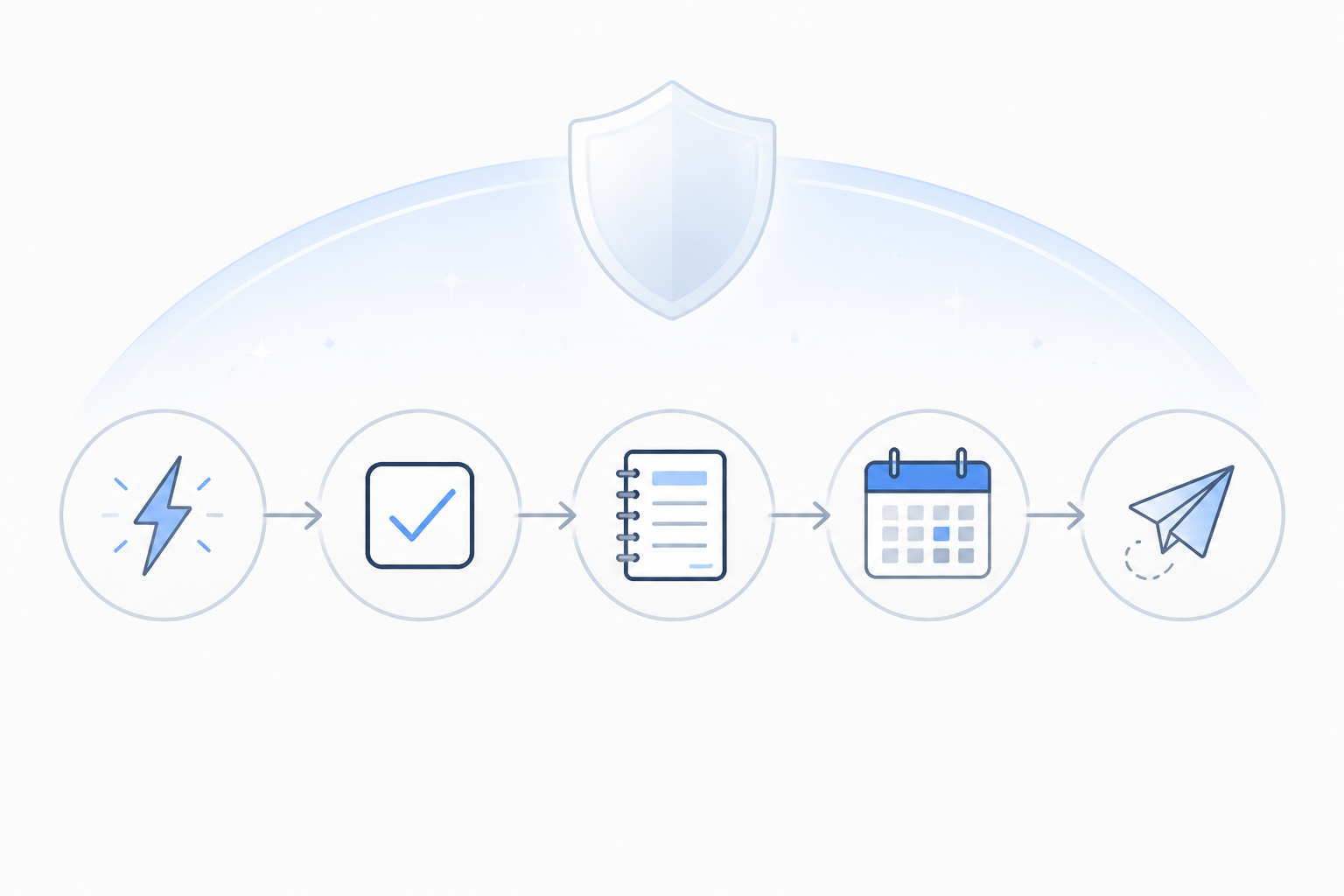
The handoff matters more than the brand name. A thought enters capture. If it requires action, it moves to the task manager. If it needs to be remembered or reused, it moves to notes. If it must happen at a certain time, it lands on the calendar. If the work needs a quiet lane, the blocker protects that lane.
Capture: Make The Inbox Fast, Then Keep It Disposable
Capture is the smallest category, and that is why people overcomplicate it. Its job is not to become your life dashboard. It only has to catch an input quickly enough that you do not keep rehearsing it in your head.
A good capture tool opens quickly, works on the device you actually have with you, accepts messy input, and has an obvious way to empty it. Apple Notes, Google Keep, Drafts, Todoist quick add, and similar lightweight tools all qualify depending on your ecosystem and habits; app catalogs and minimalist productivity comparisons consistently place simple notes and quick-entry task tools in this role rather than treating capture as a separate heavyweight system.[1][2]
The trap is comfort. A capture inbox feels productive because everything goes in easily. Then three weeks pass, and it contains meeting follow-ups, grocery items, article ideas, half-written notes, and one genuinely urgent bill reminder. That is not capture anymore. That is a junk drawer with notifications.
- Use capture for unprocessed inputs only.
- Move actions to the task manager.
- Move reference material to notes.
- Delete anything that was only a passing thought.
- Do not build folders, dashboards, or elaborate tags in the capture layer.
If you want the lowest-friction setup, use the notes app already built into your phone for capture, then empty it daily into the next two categories. If you already live in a task manager and its quick-add field is excellent, use that instead. What you should not do is keep one capture inbox for work, one for personal life, one for links, one for voice notes, and one because a new app looked calm in screenshots.
Task Management: Put Commitments Where They Can Be Reviewed
Task management deserves more care because this is where a minimalist setup most often breaks. A task manager is not a motivational poster, a second calendar, or a storage unit for interesting ideas. It is the place where you can see what you have agreed to do, what is due, and what can wait.
For beginners, the minimum feature set is plain: quick capture, due dates, recurring tasks, project grouping, search, reminders, and reliable sync. Labels, filters, priorities, natural-language parsing, calendar overlays, AI sorting, and dashboards can help, but only after the basics are trusted. Todoist, Things 3, TickTick, Microsoft To Do, and Akiflow appear frequently in current minimalist productivity comparisons because they represent different tradeoffs between simplicity, power, platform support, and planning depth.[1][2][3]
| Task App Type | Choose It When | Be Careful About |
|---|---|---|
| Simple list manager | You need fewer decisions and mostly manage personal tasks or small projects. | Outgrowing it when work requires project context, recurring routines, or stronger review habits. |
| Dedicated task manager | You need projects, deadlines, recurring actions, filters, and dependable daily review. | Spending your first week designing labels instead of entering real commitments. |
| Time-blocking planner | Your day depends on deciding when tasks happen, not just what tasks exist. | Turning every task into a calendar event and creating a schedule you will not maintain. |
| Work-suite task tool | Your team already works inside Microsoft, Google, Notion, Asana, ClickUp, or another shared platform. | Confusing assigned team work with your own trusted personal task list. |
Things 3 is often attractive to people who want a polished, low-friction Apple-first task manager. Its strength is that it does not make every task feel like a miniature database entry. Its limitation is just as important: if you need broad cross-platform access, team collaboration, or web-first work, that elegance may become a boundary. Pricing and availability should be checked in the App Store before buying, last verified for this article in Q3 2026.
Todoist is the safer default for many beginners because it is cross-platform, quick to learn, and strong enough for serious personal task management. It can also become fussy if you start treating projects, sections, labels, priorities, and filters as a design challenge. Start with projects and due dates. Add filters only when you can name the recurring review problem they solve.
Akiflow and similar planning tools make more sense when your main pain is not remembering tasks but placing them into a realistic day. That is a narrower use case. If you have very few meetings and no habit of reviewing a calendar, a planner built around time blocking may feel impressive on Monday and abandoned by Thursday.
The clean handoff is this: capture everything fast, then promote only real actions into the task manager. A task should usually begin with a verb, have one owner, and carry a due date only when the date is real. “Read about camera bags someday” is not the same kind of object as “Send signed invoice by Friday.” Your system should not treat them as equals.
Note-Taking: Stop Asking Your Task App To Remember Everything
Notes are where beginners quietly duplicate the most work. A meeting note becomes a task list. A project page becomes a calendar. A research folder becomes a second inbox. Then, when something matters, you have to remember not only the thing, but which app was wearing which costume that day.
A note-taking tool should hold information that remains useful after today: meeting decisions, research summaries, project context, reading notes, reusable templates, personal reference, and longer thinking. It should not be the primary place where deadlines live. Notion, Obsidian, Apple Notes, Bear, and OneNote all appear in productivity tool roundups because they serve different note styles: database-driven organization, local markdown files, simple ecosystem notes, writing-focused notes, or office-suite notebooks.[1][2][3]
| Note Style | Good Fit | Why It Works | Why It Fails |
|---|---|---|---|
| Structured workspace | Notion | Good for databases, shared pages, project documentation, and lightweight internal wikis. | Can become an overbuilt operating system where every small note needs a property. |
| Linked personal knowledge base | Obsidian | Good for local files, markdown, backlinks, and people who want ownership of their notes. | Can invite plugin collecting and architecture work before there is enough actual knowledge to manage. |
| Simple native notes | Apple Notes, Google Keep, OneNote, Bear | Good when speed, sync, and low ceremony matter more than elaborate structure. | Can become hard to navigate if long-term reference grows without naming and cleanup habits. |
Notion is the tempting choice if you want one place for projects, notes, databases, and shared docs. That can be exactly right for a freelancer, student, creator, or small team that needs flexible structure. It is also the app most likely to seduce a beginner into building a system about work instead of doing the work. If you choose Notion, decide in advance which pages are reference, which databases are active, and which tasks must leave for the task manager.
Obsidian is better when you care about local files, long-term ownership, markdown, and connecting ideas over time. It is less ideal if you need immediate collaboration, polished mobile capture without adjustment, or a first-week setup that requires no choices. A vault can stay beautifully small, but it can also become a plugin museum.
If that decision is the hard one, use a deeper comparison before you install both and promise yourself you will merge them later. The practical split is covered in our Obsidian vs Notion for AI notes guide. Device-specific workflows may also matter more than abstract features, especially if your notes start on a tablet or phone; see the iPad note-taking apps and Android note-taking apps comparisons before building around a device you rarely use.
The rule is boring and useful: notes can contain tasks as raw material, but active tasks should be extracted. If a meeting note says “Mina will send the draft; I will review by Wednesday,” the note keeps the context, and the task manager gets “Review Mina’s draft by Wednesday.” If the deadline stays buried in the note, your note app is now making promises on your behalf without reminding you.
Distraction Blocking: Minimalism Also Means Fewer Open Doors
Distraction blocking can feel optional because it does not store anything. That is exactly why it belongs in the stack. Capture, tasks, notes, and calendar organize work; blockers protect the conditions in which work can actually happen.
The cost of interruption is not just the minute spent checking a site or app. EITT Academy cites the widely repeated UC Irvine finding that it can take up to 23 minutes to return to a task after an interruption, and also reports figures attributed to the Digital Wellness Institute in which people practicing digital minimalism reported 34% higher focus levels and 52% lower work-related stress.[4] Those numbers should be read cautiously unless you are reviewing the underlying methodology, but the practical point holds: a “minimal” setup that leaves every feed, tab, and notification one click away is relying on willpower as infrastructure.
Freedom, Cold Turkey, browser blockers, built-in Focus modes, and time-awareness tools such as RescueTime-style tracking solve slightly different problems. A hard blocker is useful when you already know which sites or apps derail you. A focus mode helps when notifications are the main leak. A tracking tool helps when you are still guessing where the day goes. RescueTime frames digital minimalism as a way to be intentional about technology rather than simply using fewer apps, which is the right standard for this category.[5]
- Use a blocker for repeat distractions, not for every unpleasant task.
- Block during named work blocks, not all day by default.
- Protect the devices you actually use for work, not only the laptop where setup is easiest.
- Keep an emergency override if your job requires unpredictable access.
- Review blocked lists after a week; do not maintain a museum of old temptations.
Freedom is a good fit when you want scheduled blocking across multiple devices and do not mind paying for a dedicated tool. Cold Turkey is more appropriate when you want stricter desktop blocking. Built-in Focus modes are enough if the main problem is notifications and you already work inside Apple, Android, or Windows controls. Pricing and device coverage change often, so verify current plans in Q3 2026 before building a focus routine around any paid blocker.
Do not use a blocker to avoid deciding what matters. If your task manager has 140 overdue items and no next actions, blocking social media will not fix the system. It will only make the confusion quieter.
Calendar: Reserve It For Time Commitments
The calendar has one narrow job: tell the truth about time. Meetings, appointments, deadlines with fixed windows, travel, classes, calls, and protected work blocks belong there. A vague hope to “work on portfolio” does not automatically deserve a calendar block unless you are prepared to defend that time.
Google Calendar, Apple Calendar, and Outlook Calendar are enough for most people because they are reliable, widely integrated, and already attached to the ecosystems where work happens. Fantastical and similar paid calendar apps can be worthwhile if natural-language entry, calendar sets, scheduling features, or polished cross-device use remove real friction. Current minimalist app comparisons treat calendar choice largely as an ecosystem and integration decision, not as the emotional center of the productivity setup.[1][2]
The common mistake is using the calendar as a guilt board. A beginner drags every task onto Wednesday, Wednesday collapses, and the calendar becomes fiction by lunch. Time blocking can work, especially with tools that connect tasks and calendar, but only if you leave room for meetings that run over, messages that require response, and the normal human tax of switching from one kind of work to another.
- Put fixed commitments on the calendar.
- Put flexible commitments in the task manager.
- Use time blocks only for work you are genuinely protecting.
- Do not schedule every small task unless your day truly requires that level of control.
The handoff is simple: a task becomes a calendar item when time is part of the promise. “Submit grant application by July 31” can live in the task manager with a due date. “Grant review call, Tuesday at 10:00” belongs on the calendar. “Draft grant application, 9:00–11:00 tomorrow” belongs on the calendar only if you are treating that block as a real appointment with the work.
Why Redundancy Gets Expensive
The reason to limit the stack is not aesthetic purity. It is maintenance. EITT Academy reports a 68% increase in average employee app count from 2019 to 2024 and cites 40% redundancy in those tools, attributing the figures to McKinsey.[4] Treat that as a sourced claim worth verifying against the original report, not as proof that every extra app damages every worker in the same way. Still, anyone who has searched three systems for one decision understands the cost.
Redundancy usually arrives politely. A notes app adds tasks. A task app adds notes. A calendar app adds tasks. A browser extension saves links. A chat app pins messages. Nothing looks excessive in isolation. The problem appears on a tired Thursday afternoon, when you need to know what you promised, where the background is, and whether the work has a real deadline.
Vendor pages and product comparisons are useful for feature discovery, platform checks, and pricing prompts. They are weaker as evidence that a tool will improve your output. Buildin.ai and Mindful Suite provide practical 2026 app comparisons, including best-fit positioning and pricing-style distinctions, but those are still selection aids rather than independent proof that a given app will make your week calmer.[2][3]
If you are evaluating paid tools, the better question is not “Is this app powerful?” It is “Which existing decision will this remove?” A paid calendar is justified if it reduces scheduling friction every day. A paid blocker is justified if it protects work sessions across the devices where you actually get distracted. A paid notes tool is justified if collaboration, sync, storage, or structure would otherwise require awkward workarounds. Power without a maintenance budget is just future cleanup.
A Beginner Setup You Can Install Today
If you want a low-risk default, start with the tools already closest to your devices and only pay where friction is obvious. The first week is not the time to migrate your entire life into an elaborate workspace.
| User Type | Capture | Tasks | Notes | Blocking | Calendar |
|---|---|---|---|---|---|
| Apple-first solo worker | Apple Notes or Drafts | Things 3 or Todoist | Apple Notes, Bear, Obsidian, or Notion | Focus modes or Freedom | Apple Calendar or Fantastical |
| Cross-platform beginner | Google Keep or Todoist quick add | Todoist or TickTick | Notion, OneNote, or Obsidian | Freedom, Cold Turkey, or browser blocker | Google Calendar |
| Microsoft workplace user | OneNote or Microsoft To Do | Microsoft To Do or Todoist | OneNote or Notion | Windows Focus features plus a blocker if needed | Outlook Calendar |
| Student or researcher | Phone notes app | Todoist, TickTick, or Things 3 | Obsidian, Notion, OneNote, or tablet notes app | Cold Turkey, Freedom, or Focus modes | Google, Apple, or Outlook Calendar |
| Meeting-heavy professional | Task app quick add | Akiflow, Todoist, or TickTick | Notion, OneNote, or Obsidian | Freedom or Focus modes | Google Calendar, Outlook Calendar, or Fantastical |
Pick one row as a starting point, not a personality test. If your company requires Outlook, use Outlook Calendar. If your phone is Android, do not choose an Apple-only task manager because someone praised its design. If you already have five years of notes in OneNote and can find them, think carefully before migrating because a new app has better backlinks.
A setup is ready when each tool can answer one question:
- Capture: Where do loose inputs go before I decide what they are?
- Tasks: Where do I see what I have committed to do?
- Notes: Where do I store information I need to find later?
- Blocking: How do I protect focus when the work matters?
- Calendar: Where do I see what must happen at a specific time?
Then test the handoffs with ordinary work, not a fantasy day. Capture a thought while walking. Process a meeting note. Add a task with a real deadline. Schedule one protected work block. Block the sites that usually eat that block. At the end of the week, look for duplicate storage, not missing features.
Before adding anything else, verify platform support and pricing as of Q3 2026, remove duplicate apps, and run the setup for one normal workweek. Five categories are enough when each one has a non-overlapping job and a clear handoff. More tools can be useful later. They should have to earn the right to become your problem.
References
- Best Productivity Tools for Digital Minimalism, WellContent.io
- Best Minimalist Productivity Apps 2026, Buildin.ai
- Best Minimal Productivity Apps, Mindful Suite
- Digital Minimalism at Work: How to Increase Productivity by Reducing 70 Percent of Digital Stimuli, EITT Academy
- Digital Minimalism, RescueTime