
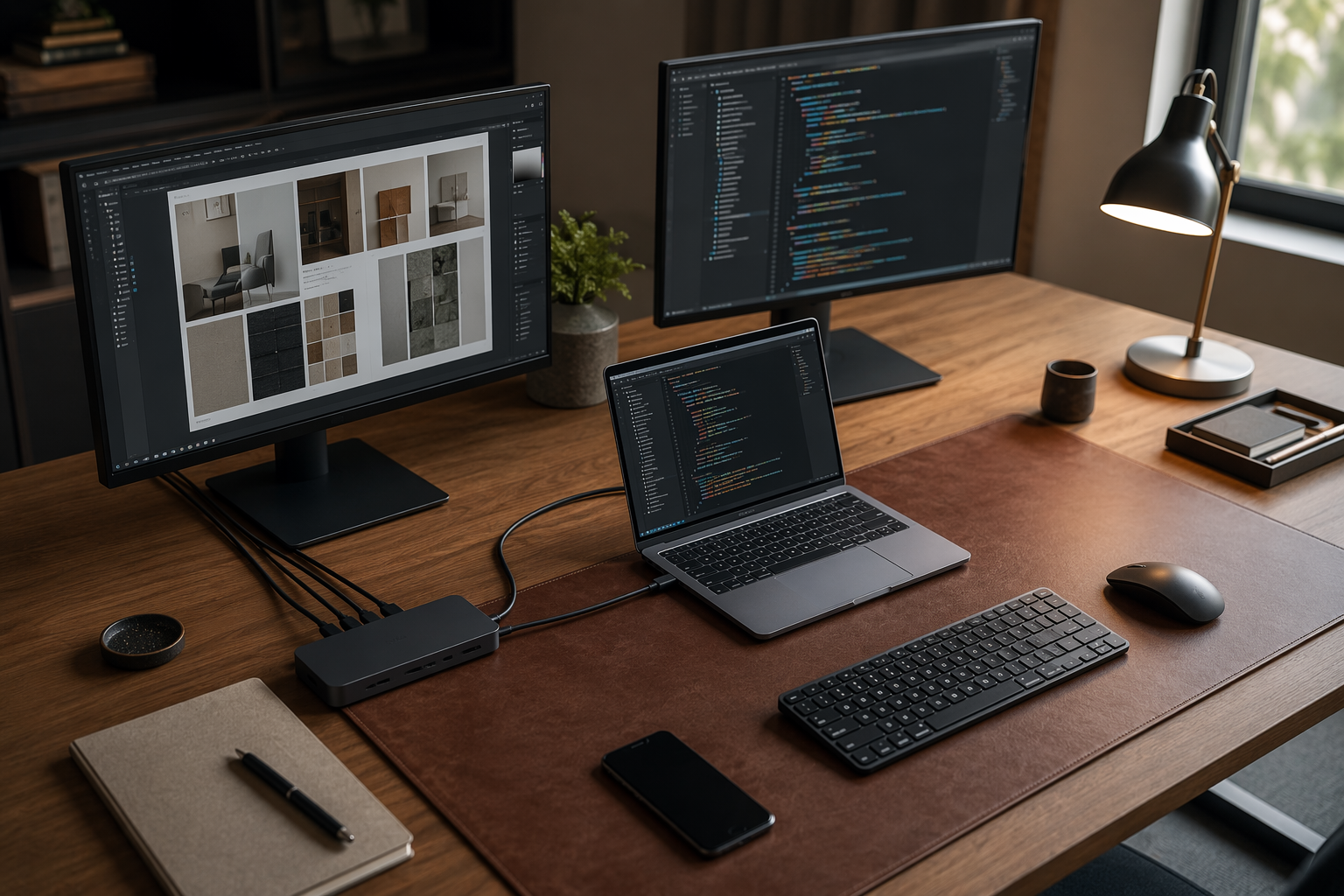
The best USB4 dock for dual monitor productivity in 2026 is no longer automatically the most expensive Thunderbolt box on the shelf. For a normal desk—two 4K monitors, Ethernet, webcam, keyboard, mouse, storage, and one cable back to the laptop—USB4 docks have reached the point where the better question is compatibility, not raw ambition.
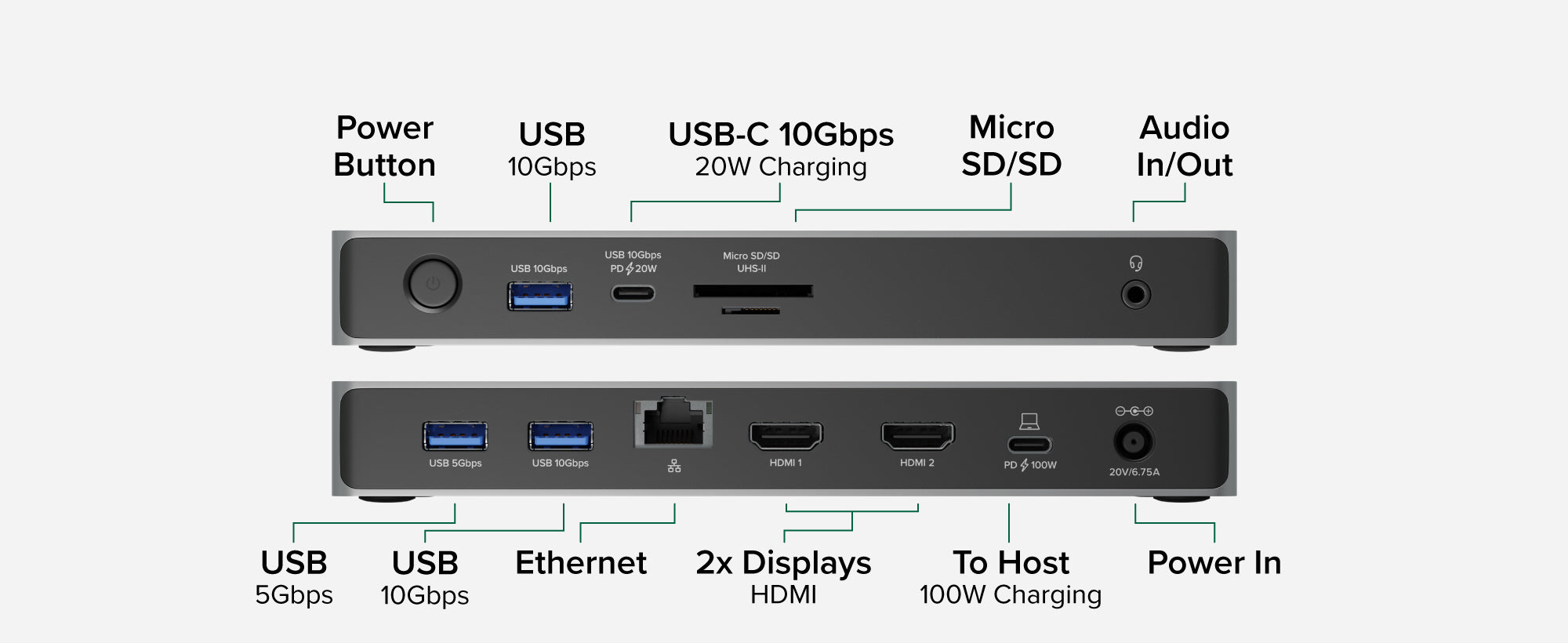
The Plugable UD-4VPD is the value benchmark: dual HDMI 2.1 outputs rated for up to dual 4K at 120Hz, 100W charging, 2.5GbE, and a UHS-II SD reader at $189.95.[1] PCWorld’s review called it “budget price, tomorrow’s tech,” which is about right for Windows users who have the right laptop behind it.[2] The catch is not small: Plugable does not recommend this dock for macOS.[1]
Quick verdicts
- Best value for Windows dual-monitor productivity: Plugable UD-4VPD. It is the dock to beat if your laptop supports the display mode you want and you do not need macOS support.
- Best safer pick for mixed laptop households: Razer USB4 Dock. It costs more, but it is built for a wider spread of Intel, AMD, Qualcomm, macOS, and Windows machines.[3]
- Best for stable dual-display desks that need connector choice: StarTech Universal USB4 & Thunderbolt 4 Dock. The four display connectors are useful, but the dock is less flexible than it first looks.[4]
- Best compact dock for Surface Pro and lightweight laptops: Microsoft Surface USB4 Dock. It is small and polished, but 65W charging and four downstream ports make it a niche pick.[5]
- Best Thunderbolt 4 alternative near USB4 pricing: Amazon Basics Thunderbolt 4 Pro Docking Station. It makes sense for Intel/TB4 buyers who specifically want downstream Thunderbolt ports.
| Dock | Best fit | Price basis | Display output | Refresh-rate ceiling | Laptop charging | Ethernet | Platform fit | Not for you if |
|---|---|---|---|---|---|---|---|---|
| Plugable UD-4VPD | Windows users who want the strongest dual-monitor value | $189.95 | 2x HDMI 2.1 | Up to dual 4K@120Hz | 100W PD | 2.5GbE | Windows-focused; manufacturer does not recommend macOS | You use a Mac, or your laptop lacks the display support needed for 120Hz |
| Razer USB4 Dock | Mixed-platform homes, consultants, and anyone unsure which laptop comes next | About $260 | HDMI 2.1 + DP 1.4 | Up to dual 4K@120Hz | USB-C laptop charging; check current listing against your laptop requirement | Networking support listed by Razer | Intel, AMD, Qualcomm, macOS, and Windows support positioning | You only need a Windows desk dock and want the lowest price |
| StarTech Universal USB4 & Thunderbolt 4 Dock | Users who want both HDMI and DisplayPort choices for a two-monitor setup | About $250 | 2x HDMI 2.1 + 2x DP 1.4 | Dual-display focused; four display jacks do not mean a simple four-monitor win | 90W PD | Dock-class wired networking | USB4 and Thunderbolt 4 positioning | You need 100W charging or several downstream USB-C ports |
| Microsoft Surface USB4 Dock | Surface Pro and light-laptop desks where compact size matters most | $199 | USB4 dock display support for modern Surface setups | Best treated as a compact productivity dock, not a high-refresh flagship | 65W PD | 1GbE | Surface and lightweight USB4 laptop users | You own a power-hungry laptop, need 2.5GbE, or use many peripherals |
| Amazon Basics Thunderbolt 4 Pro Docking Station | Intel Thunderbolt 4 users who want downstream TB4 at a sane price | About $200 | HDMI 2.1 + 2x downstream TB4 | Strong TB4 dual-monitor alternative | 96W charging | 2.5GbE | Best for Intel/TB4 laptops; less broadly aimed at AMD and Qualcomm USB4 buyers | You bought USB4 specifically for broad non-Intel compatibility |
Start with the laptop, not the dock
A dock cannot invent display bandwidth that the laptop will not send. This is the part that causes the most returns: the box says dual 4K, the laptop has a USB-C-shaped port, and the desk still does not behave the way the buyer expected.
For ordinary dual 4K at 60Hz, the current USB4 field is in good shape. That is the baseline now. The more careful check is dual 4K at 120Hz. To get there, both the dock and the laptop need the right display pipeline, specifically HBR3 plus Display Stream Compression. Intel Evo-certified laptops are usually the safer bet; AMD and Qualcomm machines vary, so the spec sheet matters before the order button does.
That distinction is why the Plugable UD-4VPD can be both the best-value pick and the wrong dock for a real buyer. On the right Windows laptop, it gives you the kind of monitor output that used to make people jump straight to premium Thunderbolt docks. On a Mac, the manufacturer’s own guidance says not to treat it as the right fit.[1]
If you use Windows and want the best value: Plugable UD-4VPD
The UD-4VPD gets the buying math right. At $189.95, it brings the useful parts of a modern productivity dock into a price range where it no longer feels like punishment for wanting two good monitors. The HDMI 2.1 outputs, 100W power delivery, 2.5GbE, and UHS-II SD reader are not decorative line items; they remove common desk compromises.[1]
The 100W charging figure is especially important. A 65W dock may be fine for a thin office laptop, but it can leave a higher-performance notebook slowly losing ground during a long video call, especially with screens, camera, and background workloads active. With 100W available, the Plugable dock covers a much wider slice of business and creator laptops.
The 2.5GbE port also matters more than the usual port-count chatter suggests. If your desk is wired to a fast router, NAS, or office network, 2.5GbE gives the dock a longer useful life than a basic 1GbE port. Nobody buys a dock because Ethernet is glamorous. They appreciate it when large files move without turning the Wi-Fi icon into a troubleshooting project.
This is not the universal winner because the macOS caveat is too large to wave away. A Mac user shopping from this list should move directly to Razer or a Thunderbolt option. A Windows user with a USB4 or Thunderbolt 4 laptop should put the UD-4VPD first, then verify the laptop’s display specs if 120Hz is part of the plan.
If your household mixes Mac, Windows, Intel, AMD, and Qualcomm: Razer USB4 Dock
The Razer USB4 Dock is the one I would recommend to someone who does not fully control which laptop will be on the desk six months from now. Razer positions it for broad Intel, AMD, Qualcomm, macOS, and Windows compatibility, and its port mix includes HDMI 2.1 plus DisplayPort 1.4 for dual 4K at up to 120Hz.[3]
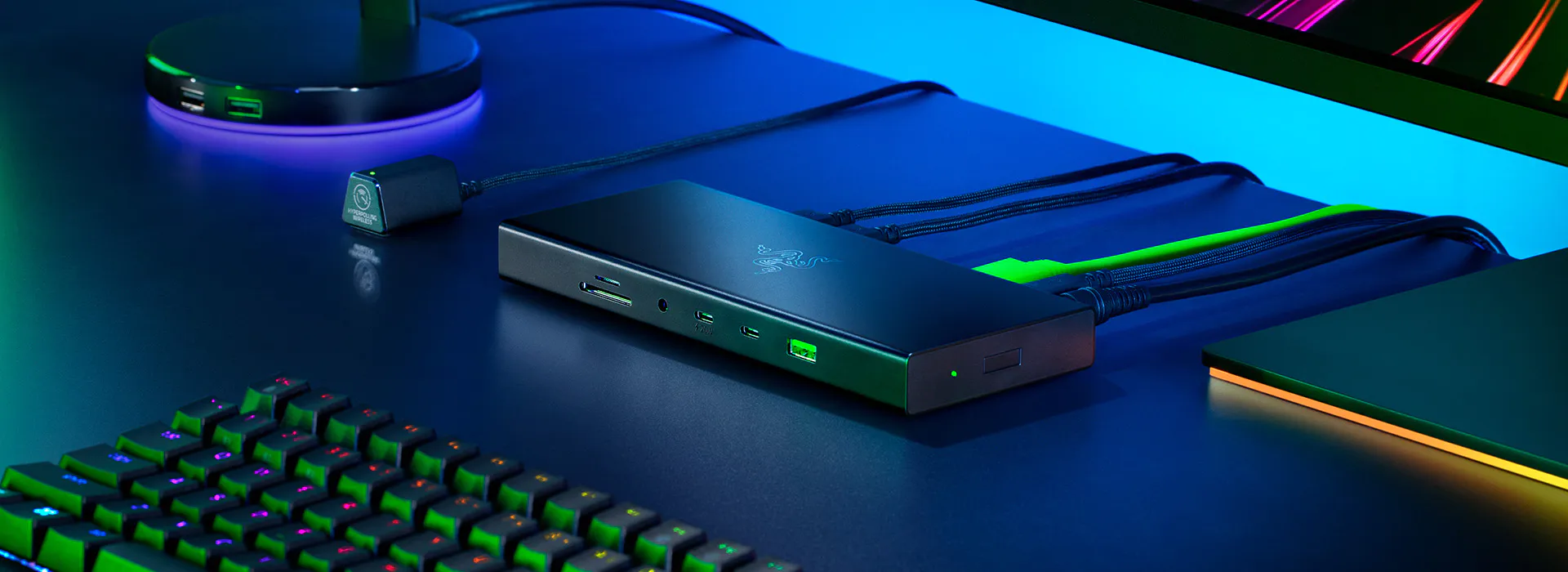
The extra cost is not just for a logo. The Razer dock has 14 ports and includes a dedicated low-interference USB-A port for 2.4GHz wireless peripherals such as a mouse or headset dongle.[3] That is the kind of small port-layout decision that matters after the desk is built. A flaky headset dongle ruins a meeting faster than a missing third display output.
For a single Windows laptop, the Plugable dock is easier to justify. For a consultant moving between a company-issued Windows laptop and a personal Mac, or a household with an Intel machine today and a Snapdragon laptop tomorrow, the Razer becomes the safer purchase. It is the dock you buy to reduce compatibility drama, not to win the lowest-price comparison.
If you want display connector flexibility: StarTech Universal USB4 & Thunderbolt 4 Dock
StarTech’s Universal USB4 & Thunderbolt 4 Dock looks generous because it gives you four display connectors: two HDMI 2.1 and two DisplayPort 1.4. For a real two-monitor desk, that is useful. You can match the cables already attached to your monitors instead of buying adapters or replacing perfectly good DisplayPort leads.[4]
The trap is assuming four display jacks mean a simple four-display workstation. PCWorld’s verdict—“Great for 2 displays, tricky for 4”—is the useful framing here.[4] Treat it as a stable, connector-flexible dual-display dock, and it makes sense. Treat it as a cheap path to a wall of monitors, and you are shopping from the wrong premise.
Its other compromises are more practical than dramatic: 90W power delivery instead of 100W, and only a single downstream USB-C port.[4] That is fine for a desk where the monitor cables are the main problem. It is less ideal if you expect the dock to become the center of every fast external drive, USB-C accessory, and charging cable on the desk.
If compactness matters more than expansion: Microsoft Surface USB4 Dock
The Microsoft Surface USB4 Dock is the neatest object in this group. It is compact, clean, and very easy to imagine behind a monitor or beside a Surface Pro. Dan S. Charlton’s teardown review praised the premium build and small footprint, while also calling out the practical compromises: 65W power delivery, 1GbE rather than 2.5GbE, and only four downstream ports.[5]
That makes it a good match for lighter Surface setups, not a blanket recommendation for every Surface-branded laptop. The 65W charging ceiling is the line to watch. It is not enough for Surface Laptop Studio, and it is not where I would start for any power-hungry work machine.[5]
If your desk is intentionally minimal—a Surface Pro, two displays, a keyboard, a mouse, and Ethernet—the Surface USB4 Dock is pleasant. If your desk has a webcam, audio interface, external SSD, card reader, printer dongle, and a laptop that wants more power, it becomes too small in the wrong ways.
If you still want Thunderbolt 4: Amazon Basics Thunderbolt 4 Pro Docking Station
The Amazon Basics Thunderbolt 4 Pro Docking Station belongs in this comparison because its pricing has moved close enough to USB4 territory to make it a credible alternative for the right buyer. With two downstream Thunderbolt 4 ports, HDMI 2.1, 96W charging, and 2.5GbE, it answers a different version of the desk problem: an Intel/TB4 laptop user who wants Thunderbolt expansion, not just a dual-monitor USB4 dock.
That is also why it is not the main value pick here. Thunderbolt 4 is cleanest when you are already in the Intel/TB4 lane. If your laptop is AMD Ryzen or Qualcomm Snapdragon with USB4, the broader USB4 compatibility story matters more than having Thunderbolt in the product name.
The 120Hz promise needs a second check
Dual 4K at 60Hz is now the reasonable expectation for a serious USB4 productivity dock. Dual 4K at 120Hz is where the footnotes start to matter. The dock can be capable, the monitors can be capable, and the setup can still fall back if the laptop’s USB4 display implementation is not delivering HBR3 plus DSC.
This matters for workers buying high-refresh monitors for reasons that are not gaming. A 120Hz desktop can make scrolling, timeline work, spreadsheet navigation, and design movement feel calmer. It is a nice upgrade. It is not worth buying blind if the laptop cannot drive it through the dock.
| Your monitor goal | What to verify before buying | Safer dock direction |
|---|---|---|
| Two 4K monitors at 60Hz | USB4 or Thunderbolt 4 support, plus the dock’s stated dual-display mode | Any of the main USB4 picks, matched to platform and power needs |
| Two 4K monitors at 120Hz | Dock support plus laptop support for HBR3 + DSC | Plugable for compatible Windows laptops; Razer for broader platform uncertainty |
| Mac plus two external displays | The Mac model’s external display limits and the dock maker’s macOS guidance | Razer or a Thunderbolt-oriented alternative, not Plugable UD-4VPD |
| Powerful laptop under heavy calls or creative work | Whether the laptop needs more than 65W or 90W to avoid battery drain | 100W-class docks first; avoid 65W unless the laptop is light-duty |
The wording to look for in a laptop spec sheet is not just “USB-C” or even “USB4.” You want the display capability behind that port. If the manufacturer buries the detail, look for explicit claims around external monitor resolution and refresh rate, DisplayPort mode, DSC support, or certification language. If you cannot verify it, assume dual 4K@60Hz before assuming dual 4K@120Hz.
USB4 versus Thunderbolt 4, without the mythology
USB4 and Thunderbolt 4 overlap in the practical capabilities most desk users care about: high-speed data, DisplayPort tunneling, PCIe tunneling, and 40Gbps-class operation depending on implementation.[6] Thunderbolt 4 adds Intel certification and a more tightly controlled requirements set. That still has value, especially in Intel-heavy environments.
The price argument for USB4 is that a dock can deliver the dual-monitor experience people actually need without carrying the same Thunderbolt certification cost structure. That is how a dock like the Plugable UD-4VPD can land under $200 while still offering the ports that change a desk: dual HDMI 2.1, 100W PD, and 2.5GbE.[1]
The old habit of treating Thunderbolt as the automatic premium answer is less useful in 2026. Thunderbolt 4 remains a good fit when you need downstream Thunderbolt devices, strict Intel-laptop predictability, or a known enterprise standard. For a dual-monitor productivity desk, USB4 is now the default value place to start.
Which dock should you buy?
Buy the Plugable UD-4VPD if you use a compatible Windows laptop and want the strongest feature-per-dollar desk dock. It is the one to beat because it pairs the right outputs with 100W charging and 2.5GbE at $189.95.[1]
Buy the Razer USB4 Dock if your desk sees both Mac and Windows machines, or if your next laptop could be Intel, AMD, or Qualcomm. The premium makes sense when avoiding a return is worth more than saving roughly the price difference.
Buy the StarTech dock if your priority is a stable dual-display desk with both HDMI and DisplayPort options. Do not buy it just because it has four display connectors. The more relevant limits are 90W charging and the single downstream USB-C port.[4]
Buy the Microsoft Surface USB4 Dock if your laptop is light, your desk is tidy, and compactness matters more than expansion. The 65W power limit and four downstream ports are too restrictive for heavier setups.[5]
Buy the Amazon Basics Thunderbolt 4 Pro Docking Station if you are on an Intel Thunderbolt 4 laptop and specifically want downstream Thunderbolt ports at a price that competes with USB4 docks. For AMD and Qualcomm USB4 laptop owners, start with the USB4 picks instead.
Before buying, make three checks: confirm your laptop’s external-display capability, confirm whether you need 60Hz or 120Hz, and confirm the dock can supply enough power for your laptop under load. Once those are settled, buy the least expensive dock that satisfies both the display requirement and the charging requirement.
References
- Plugable USB4 Dual Monitor Docking Station with 4K 120Hz HDMI, 100W Charging (UD-4VPD) — Plugable — link
- Plugable USB4 Dual HDMI dock review: Budget price, tomorrow's tech — PCWorld — link
- Razer USB 4 Dock product page — Razer — link
- StarTech USB4 dock review: Great for 2 displays, tricky for 4 — PCWorld — link
- Surface USB4 Dock for Business Teardown and Review — Dan S. Charlton — link
- USB4 vs Thunderbolt 4: Understanding the differences — BenQ — link