


Introduction: The Mac-Native Note-Taking Choice
If you live in the Apple ecosystem — Mac, iPhone, iPad — you have a decision to make about where to write your notes. The obvious starting point is Apple Notes, which ships free on every device and has become surprisingly capable. But two polished third-party apps, Bear and Craft, offer experiences that Apple Notes cannot match, each optimized for a different kind of writer.
This comparison is deliberately narrow. We are not weighing in on cross-platform Electron apps like Notion or Obsidian, which have their own strengths but carry a performance tax on Apple Silicon. Instead, we are looking at three apps that are Universal 2 binaries, optimized for macOS, and under 200MB of resident RAM at idle — apps that will not measurably impact battery life on an 8GB M2 MacBook Air. The choice among them comes down to three things: whether you prefer Markdown or rich text, how deeply you need to organize your notes, and how important it is to be able to take your data with you.
For a broader look at how these apps fit into different workflow categories — quick capture, knowledge base, structured databases — see our workflow-based comparison.
At a Glance: Apple Notes vs. Bear vs. Craft
The table below summarizes the key decision factors. All data points come from a 28-day parallel test of six macOS apps conducted by Atlas Workspace, supplemented by official pricing pages and editorial reviews from PCMag and The Sweet Setup.
| Feature | Apple Notes | Bear | Craft |
|---|---|---|---|
| Price | Free (5GB iCloud); iCloud+ from $0.99/mo | Free tier; Pro $2.99/mo or $29.99/yr | Free tier; Pro $5/mo ($59.99/yr) |
| RAM (idle) | 142MB | 84MB (lightest tested) | ~150MB (estimated) |
| App open time | 0.3 seconds | 0.6 seconds | ~0.5 seconds |
| Editor type | Rich text (limited Markdown) | Markdown-first (auto-hiding syntax) | Block-based rich text |
| Export formats | PDF only | Markdown, TXT, PDF, HTML, DOCX | PDF, Markdown, Word |
| Sync | iCloud (free) | iCloud (Pro required) | iCloud + Craft Cloud (Pro) |
| AI features | Apple Intelligence (transcription, summarization, image generation) | None | AI writing assistant (Pro) |
| Quick Note support | Yes (corner gesture) | No | No |
| Widgets | Yes (multiple sizes) | Yes (multiple sizes) | Yes (multiple sizes) |
| Apple Pencil support | Yes (handwriting, Lock Screen notes) | Yes (sketching) | Yes (sketching) |
Apple Notes: The Free, Fast Default
Apple Notes has evolved from a simple scratchpad into a genuinely capable note-taking app. It opens in 0.3 seconds and uses 142MB of RAM at idle, making it the fastest app in this comparison. It is free, pre-installed, and deeply integrated into the operating system.
What Apple Notes Does Well
- Quick Note: The corner gesture lets you summon a new note from anywhere on your Mac or iPad — no app switching required. This is a first-party feature that no third-party app can replicate.
- Locked notes: You can lock individual notes with Touch ID or a password, a simple but effective privacy feature.
- Apple Intelligence: On supported hardware, Notes can transcribe audio recordings, summarize text, and generate images. These features are built into the OS and require no subscription.
- System integration: Drag-and-drop of images, audio, and files works seamlessly. Notes sync instantly via iCloud across all your Apple devices.
- Apple Pencil: You can write on the Lock Screen with a single tap, and handwriting recognition is built in.
Where Apple Notes Falls Short
- Export is limited to PDF. There is no official way to export an entire notebook or a batch of notes. If you ever want to leave Apple Notes, you will need to use a third-party Automator workflow or a paid migration tool, and the result will be imperfect.
- Organization is basic. You get folders and a smart folder system, but no tags, no backlinks, and no graph view. For a knowledge base with hundreds of interconnected notes, this becomes a limitation.
- Rich text only. While Apple Notes supports some Markdown-like shortcuts (bold, italic, lists), it does not use Markdown as its underlying format. This means no plain-text portability and no compatibility with Markdown-based tools.
- Performance may degrade with very large libraries. Some users report slowdowns past roughly 1,000 notes, though this threshold varies by hardware and macOS version.
Apple Notes is the right choice if you want a free, fast, no-fuss app that works perfectly within the Apple ecosystem and you do not need to export your notes or build a complex knowledge base. It is the surest thing for longevity, as The Sweet Setup notes — it will be on your next Mac, too.
Bear: The Markdown-First Writing Haven
Bear is a Markdown-first note-taking app that won an Apple Design Award in 2017 and underwent a complete rewrite (Bear V2) that launched in July 2023. It is the lightest app in this comparison, using just 84MB of RAM at idle, and opens in 0.6 seconds.
What Bear Does Well
- Markdown-first editor with auto-hiding syntax. You write in Markdown, but the formatting syntax disappears as you type, leaving a clean reading view. This is the best Markdown writing experience on any Apple device.
- Tag-based organization. Instead of folders, Bear uses nested tags (e.g., #projects/2026). This is more flexible than folders and allows a single note to live in multiple categories.
- 28 design themes and 15 unique app icons. Bear is the most customizable app in this comparison, down to the typography and accent colors.
- Strong export options. You can export individual notes or entire tags in Markdown, TXT, PDF, HTML, or DOCX. This is the best export story of any app in this comparison.
- OCR support for PDFs and photos. Bear can search text inside images and scanned documents, a feature that Apple Notes lacks.
Where Bear Falls Short
- Apple-only. Bear has no Windows, Linux, or web client. If you ever switch platforms, you will need to export your notes and migrate.
- Sync requires a Pro subscription. The free tier is limited to local notes on one device. To sync across Mac, iPhone, and iPad, you need Bear Pro at $2.99/month or $29.99/year.
- No AI features. Bear does not offer transcription, summarization, or image generation. If you rely on Apple Intelligence, you will not find it here.
- Simpler organizational model. Bear's tag system is powerful, but it lacks the database-like structure of Craft or Notion. It is not designed for project management or complex databases.
PCMag rates Bear 3.5 out of 5 stars, calling it the best alternative to Apple Notes. That assessment holds up: Bear is the app to choose if you are a writer who values a beautiful, distraction-free Markdown environment and wants the freedom to export your work in any format.
Craft: Document-Style Structure with Apple-Native Polish
Craft is the newest entrant in this comparison, and it fills a specific niche: users who want the structured, block-based editing of Notion but do not want to leave the Apple ecosystem. It is a Universal 2 binary with clean typography, easy media embedding, and a document-style organizational model based on spaces and pages.
What Craft Does Well
- Block-based editing. You can rearrange content by dragging blocks — paragraphs, images, tables, code snippets — like building blocks. This makes it easy to restructure a document after writing.
- Clean typography and design. Craft is the most visually polished app in this comparison. Its default typography and spacing make long documents pleasant to read.
- Easy media embedding. You can drag in images, videos, files, and even web page previews without breaking the document flow.
- Export to PDF, Markdown, and Word. Craft offers solid export options, though not as extensive as Bear's.
- AI writing assistant (Pro). Craft includes an AI assistant that can rewrite, summarize, and generate text, though it requires a Pro subscription.
Where Craft Falls Short
- Higher price. Craft Pro costs $5/month ($59.99/year), making it the most expensive app in this comparison. The free tier is limited to a small number of documents.
- No Windows or Linux clients. Like Bear, Craft is Apple-only. There is a web app, but it is less polished than the native clients.
- Weaker databases than Notion. Craft's block-based editing is excellent for documents, but it lacks the relational database features that make Notion a project management tool.
- No Quick Note support. You cannot summon a new note from anywhere on your Mac without opening the app first.
Craft is the right choice if you want a design-led, structured document experience with Apple-native performance and you are willing to pay for it. It is particularly well-suited for writing long-form documents, project proposals, and personal knowledge bases that benefit from visual structure.
Performance on Apple Silicon: What the Benchmarks Say
One of the strongest arguments for choosing a Mac-native app over a cross-platform Electron app is performance. The Atlas Workspace 28-day test measured three key metrics across these apps on an 8GB M2 MacBook Air.
| Metric | Apple Notes | Bear | Craft |
|---|---|---|---|
| Resident RAM (idle) | 142MB | 84MB | ~150MB |
| App open time | 0.3 seconds | 0.6 seconds | ~0.5 seconds |
| Battery impact (8GB M2 MacBook Air) | Not measurable | Not measurable | Not measurable |
All three apps are Universal 2 binaries, meaning they run natively on both Intel and Apple Silicon Macs. None of them measurably impacted battery life during the test period. This is a meaningful differentiator from Electron-based apps like Notion and Evernote, which can consume significantly more RAM and battery.
Which App Should You Choose? A Decision Tree by Use Case
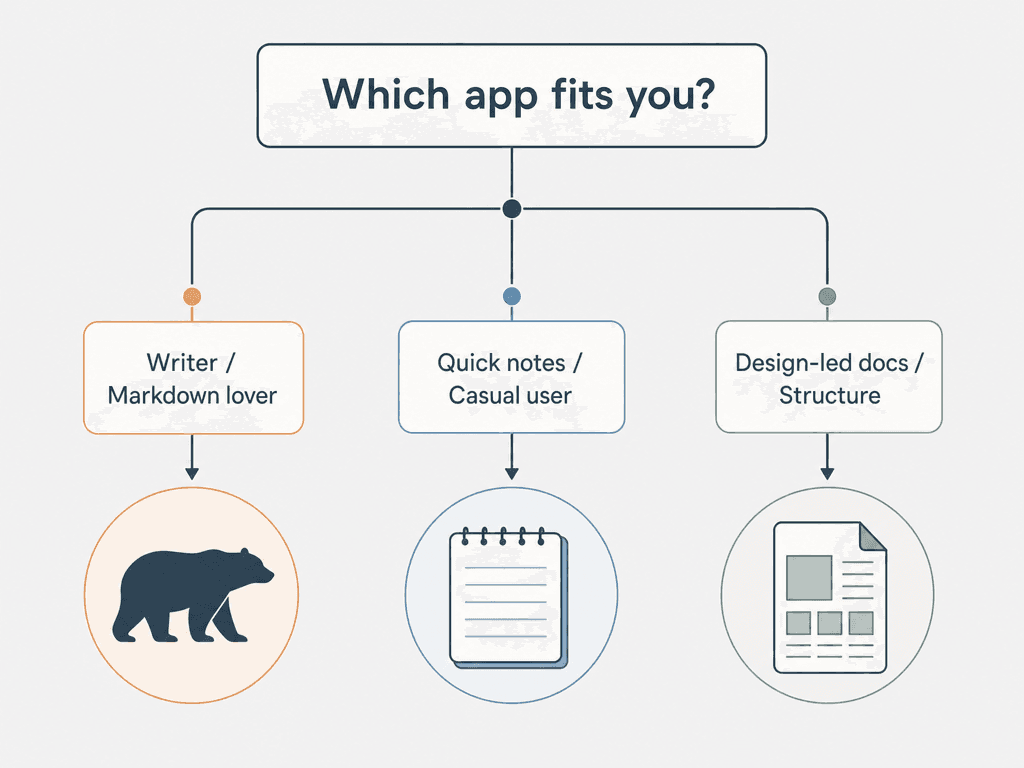
The right app depends on your priorities. Here is a straightforward framework.
Choose Apple Notes if…
- You want a free, fast, no-fuss app that works perfectly across all your Apple devices.
- You rely on Quick Note, Lock Screen notes, or Apple Intelligence features.
- You do not need to export your notes or build a complex knowledge base.
- You prefer rich text over Markdown.
Choose Bear if…
- You are a writer who values a beautiful, distraction-free Markdown environment.
- You want the best export options in this comparison (Markdown, TXT, PDF, HTML, DOCX).
- You prefer tag-based organization over folders.
- You want the lightest app possible (84MB RAM idle).
Choose Craft if…
- You want a Notion-like structured document experience with Apple-native polish.
- You write long-form documents that benefit from block-based editing and clean typography.
- You are willing to pay $5/month for a premium writing experience.
- You need AI writing assistance (Pro feature).
The Verdict: Three Excellent Choices, One Right Fit
There is no single "best" app among these three. Each one excels in a different dimension: Apple Notes for speed and system integration, Bear for Markdown writing and export portability, and Craft for structured documents and design polish.
| Use Case | Best App | Why |
|---|---|---|
| Casual note-taking, Apple ecosystem loyalist | Apple Notes | Free, fastest, deep OS integration, Quick Note |
| Writer, Markdown enthusiast, export-conscious | Bear | Best Markdown editor, lightest RAM, strongest export |
| Design-led documents, structured writing | Craft | Block-based editing, clean typography, AI assistant |
If you are still unsure, start with Apple Notes — it is free and pre-installed, so there is no cost to trying it. If you find yourself wanting a better writing experience or more control over your data, Bear is a natural upgrade. And if you need structured documents with visual polish, Craft is worth the subscription.
For a broader look at how these apps fit into different workflow categories — quick capture, knowledge base, structured databases, and AI-powered synthesis — see our workflow-based comparison of Mac note-taking apps.


Comments
Join the discussion with an anonymous comment.